

Use history summaries and instruction drafts
Choose the assistant mode, inspect recorded sources and review every draft before use.
By ClinBeam · Practical product workflow guidance
Complete the steps below and check each recorded result before moving to the next workflow.
Where to work: Assistant settings → Patient workspace / Visit room; Operations · Clinician / Clinic administrator
Before you start
- Assistant availability, permitted patient access and clinician review for clinical drafts.
- The selected clinic and record are correct.
- The module and required actions are available to your account.
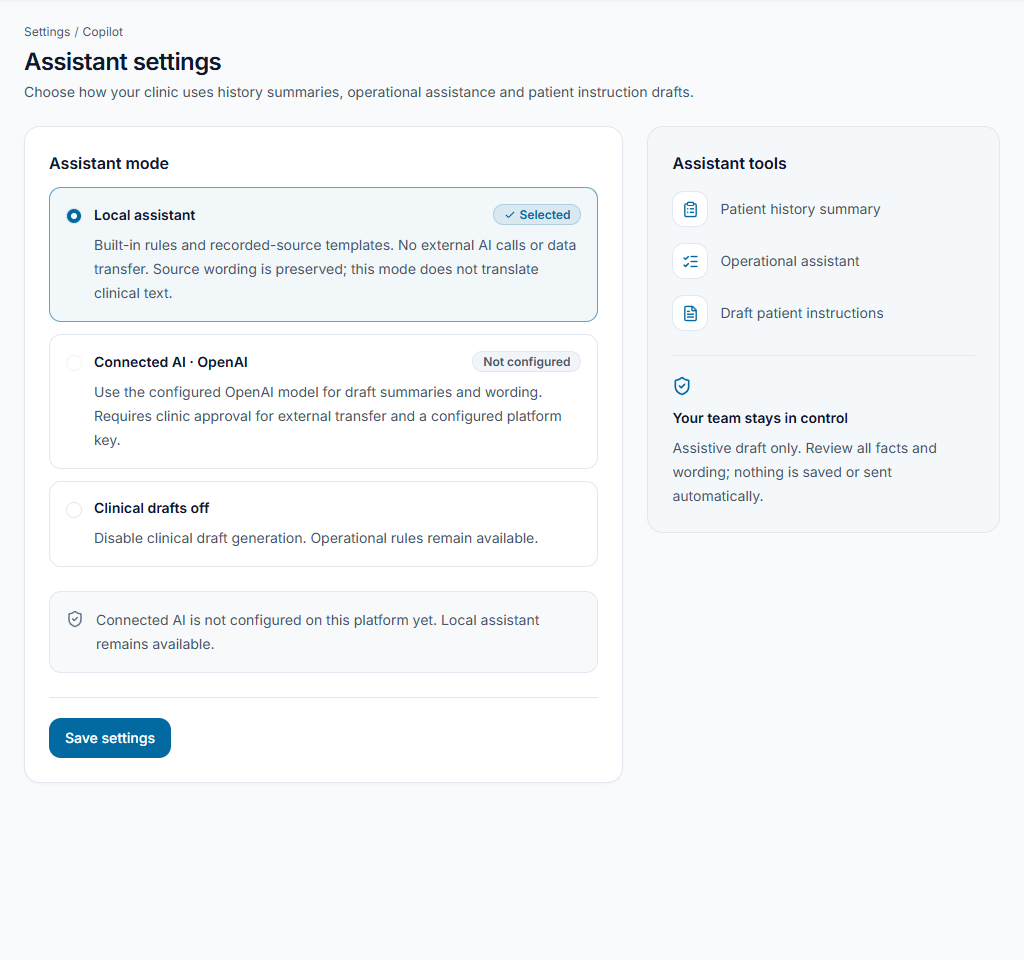
Choose the clinic's mode
Open Assistant settings. Local assistant uses built-in rules and source templates; it is not an external language model. Connected AI needs platform configuration and the clinic's transfer approval. Review limits before saving; Off disables clinical drafting while operational rules remain available.
Check the result The selected mode and data-sharing implications are understood.
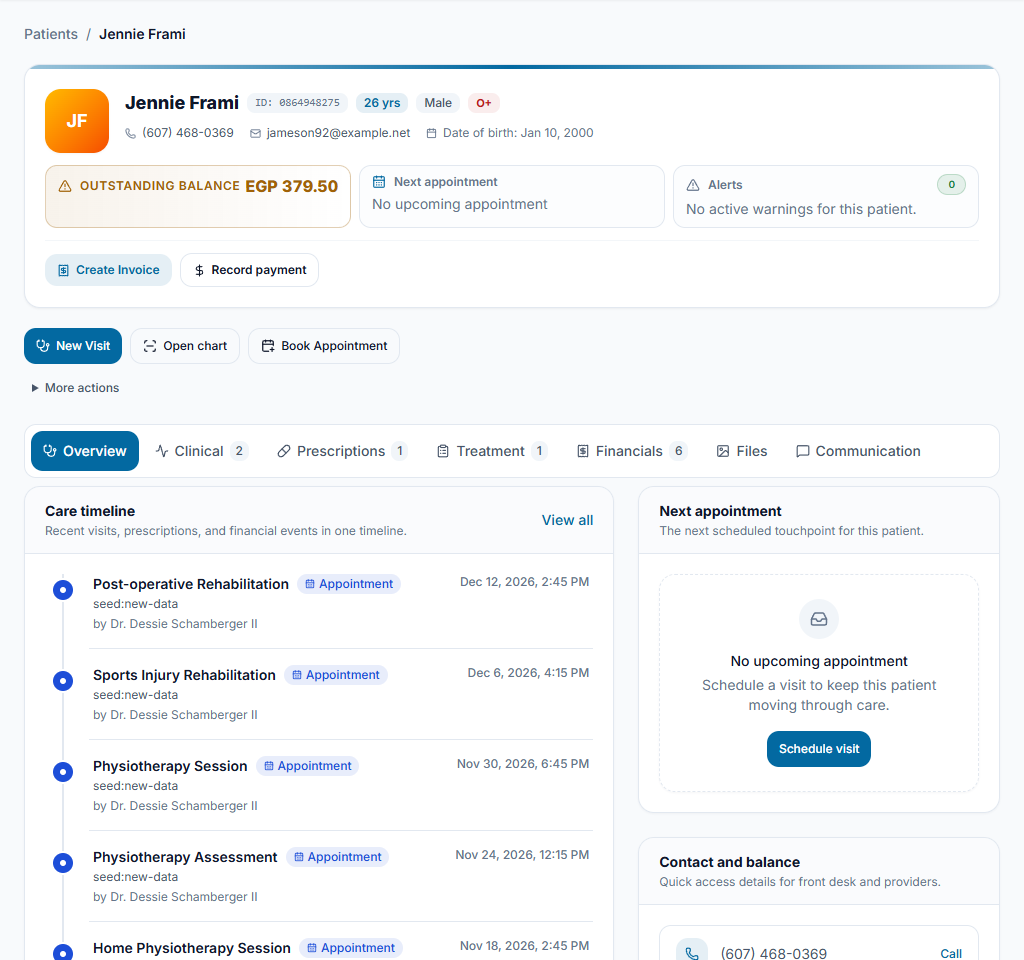
Generate from the intended record
Open Patient history summary or Draft patient instructions in the appropriate patient/visit context. Review the recorded-source content and missing-information indicators. Operational assistance highlights recorded work, not facts it has independently verified.
Check the result The draft refers to the intended patient and available recorded sources.
Review before using
The clinician checks the draft against the record, corrects omissions and approves any final instructions through the existing document/visit workflow. Do not treat a draft as a diagnosis, a sent message or a signed note.
Check the result Only reviewed content is used; no automatic clinical approval or delivery is assumed.
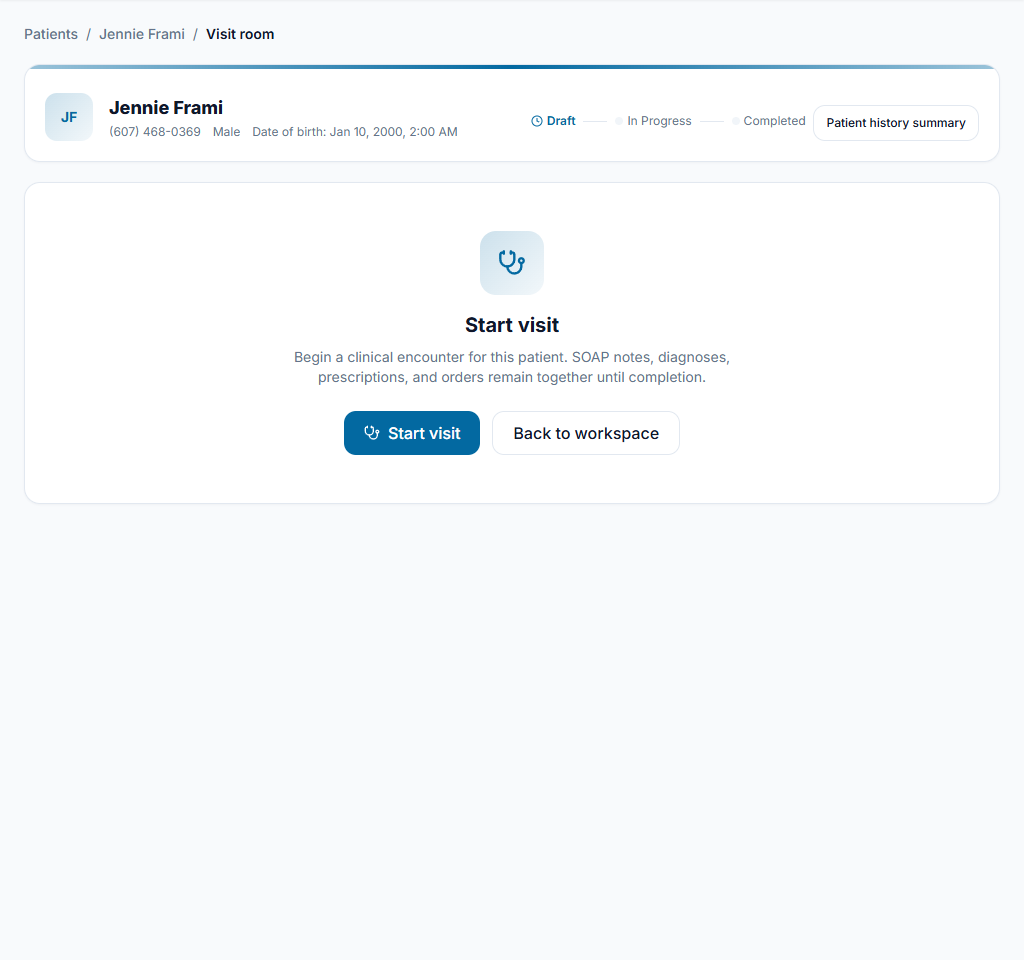
Worked example
Generate a history summary before a follow-up, open its source records and correct a missing history detail before using the summary.
Something not working?
Connected AI is unavailable.
Use Local assistant if suitable and ask the platform administrator to review provider configuration. Changing the clinic mode alone does not install a provider.
The screen or action is unavailable.
Ask the clinic administrator to check your role, individual permissions, clinic context and enabled modules. Do not use another person’s account.
Team checklist
- The selected mode and data-sharing implications are understood.
- The draft refers to the intended patient and available recorded sources.
- Only reviewed content is used; no automatic clinical approval or delivery is assumed.