

Plan treatment and arrange follow-up visits
Keep planned treatment, actual progress and booked visits connected but distinct.
By ClinBeam · Practical product workflow guidance
Complete the steps below and check each recorded result before moving to the next workflow.
Where to work: Treatment plans → patient plan; Calendar · Clinician / Reception
Before you start
- Clinician's agreed plan, patient record and relevant services.
- The selected clinic and record are correct.
- The module and required actions are available to your account.
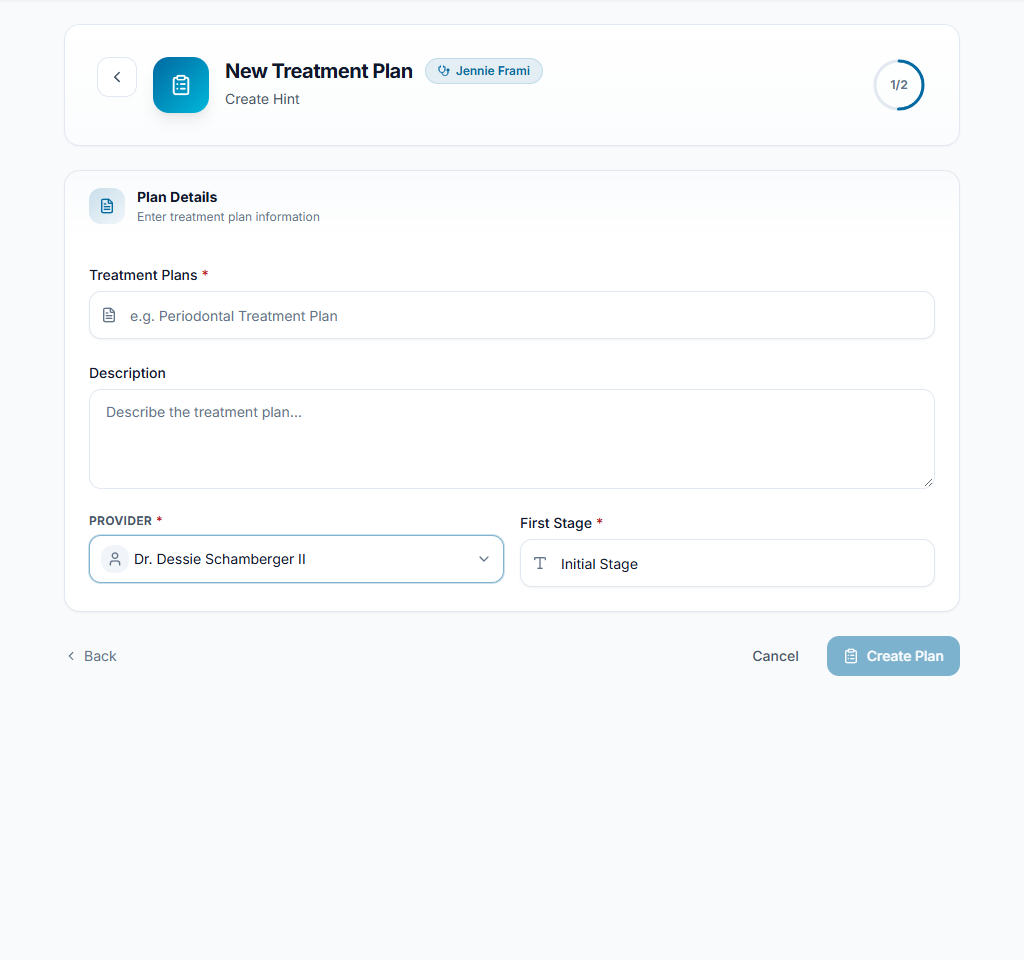
Create the plan
Open Treatment plans for the patient and create the agreed plan. Enter its title and planned services/items using the available form; review the patient and totals before saving.
Check the result The patient has the intended treatment plan and its planned items.
Record actual progress
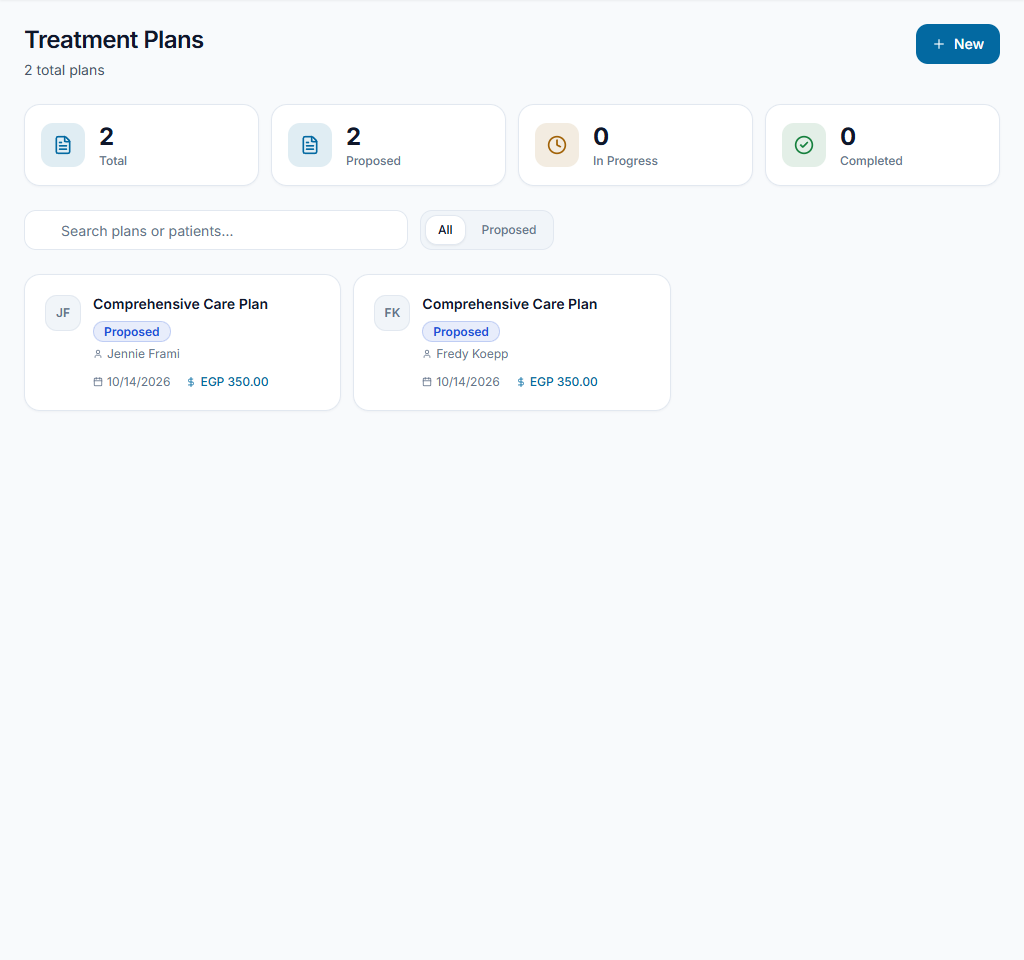
Open the plan details and update item/plan status only when the work actually changes. Review previous progress before adding another item so recurring sessions are not duplicated accidentally.
Check the result The plan reflects completed, ongoing and outstanding work.
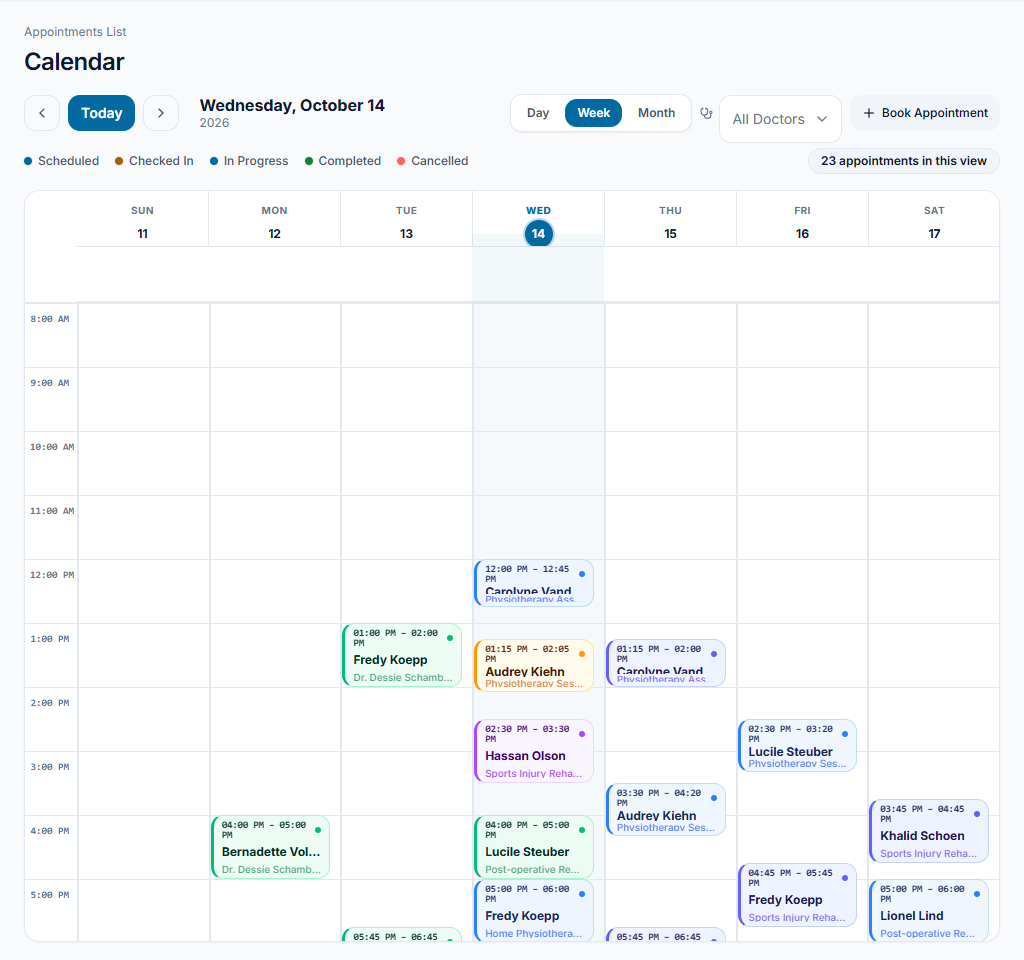
Book the next visit
Book follow-up appointments in Calendar with the correct service and clinician. Review invoices/payments separately; a plan item is neither a booked appointment nor a received payment.
Check the result The next visit is booked and the clinical/financial records remain consistent.
Worked example
A planned course needs another session. Update its progress, book the next appointment and review the outstanding invoice balance independently.
Something not working?
There is a plan but no appointment.
Open Calendar and book the visit. Creating or updating a treatment plan does not automatically reserve a time.
The screen or action is unavailable.
Ask the clinic administrator to check your role, individual permissions, clinic context and enabled modules. Do not use another person’s account.
Team checklist
- The patient has the intended treatment plan and its planned items.
- The plan reflects completed, ongoing and outstanding work.
- The next visit is booked and the clinical/financial records remain consistent.