

Brand your clinic and configure its booking page
Review clinic identity, contact methods and booking availability before sharing the clinic link.
By ClinBeam · Practical product workflow guidance
Complete the steps below and check each recorded result before moving to the next workflow.
Where to work: Branding → Booking settings → Services · Clinic administrator
Before you start
- Approved clinic logo/contact details and administrator access.
- The selected clinic and record are correct.
- The module and required actions are available to your account.
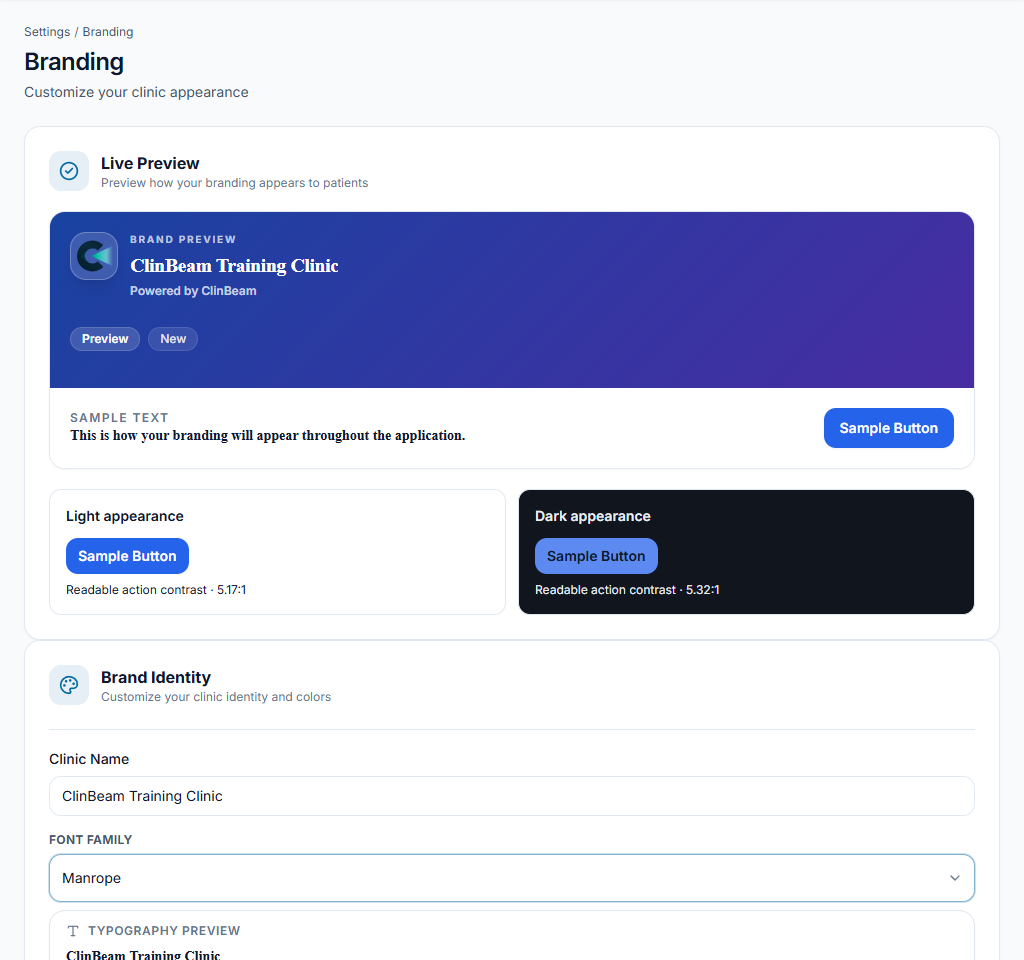
Set the clinic identity
Open Branding and review the clinic name, logo and available colours. Upload a supported logo and save. Open the clinic sign-in/public page to verify the displayed identity; it is separate from ClinBeam's public sales site.
Check the result The clinic link shows the intended clinic branding.
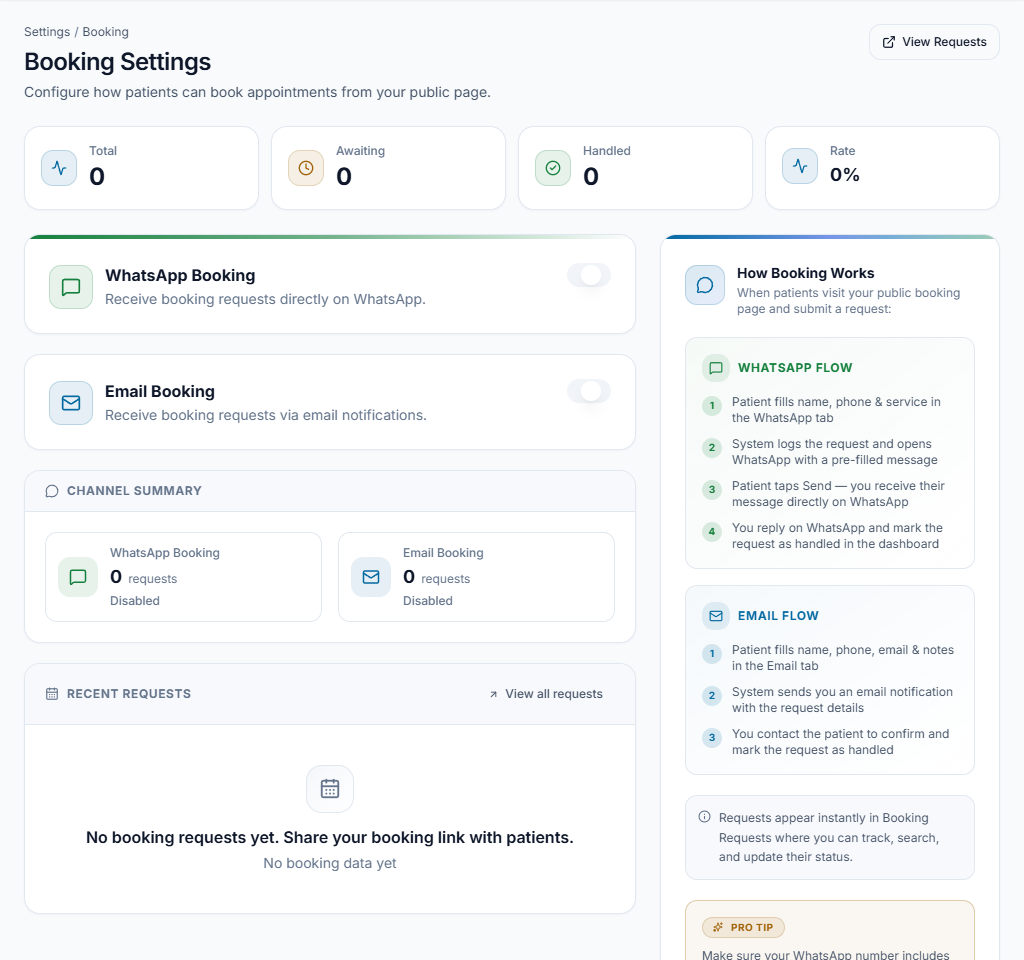
Configure booking/contact options
Open Booking settings and review enabled booking/contact methods and clinic information. Confirm phone, email, location and hours before sharing them. Enable only channels the team actually monitors.
Check the result The public page directs patients to a real, supported contact or booking path.
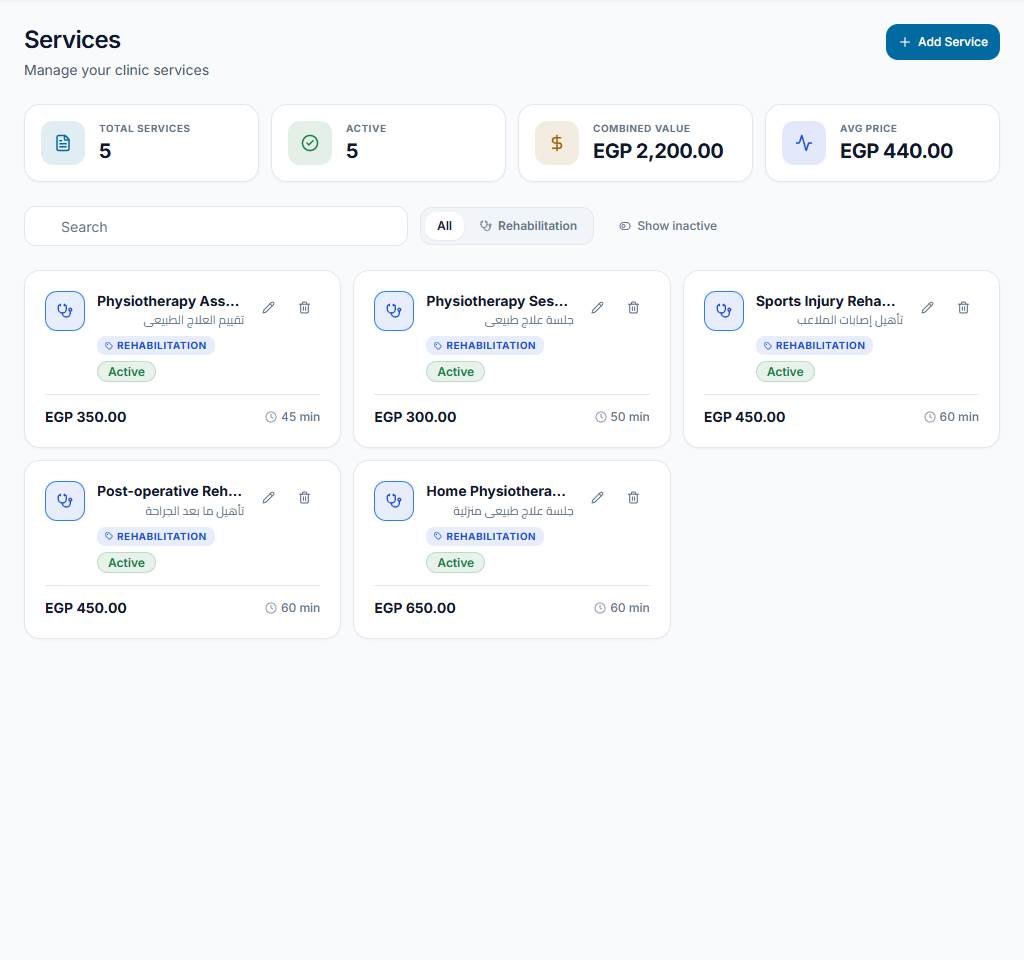
Review services and test the page
Check enabled services, provider availability and any selected booking options. Preview the public clinic page in each supported language. A booking request may require staff review; it is not automatically a confirmed appointment unless the workflow explicitly records it.
Check the result The team can find incoming requests and handle confirmation deliberately.
Worked example
Share the clinic link after verifying its name and contact method, then confirm how reception reviews and turns requests into appointments.
Something not working?
The page shows an unavailable service.
Review active services, booking settings and clinician availability. Do not promise an instant confirmed booking without checking the actual workflow.
The screen or action is unavailable.
Ask the clinic administrator to check your role, individual permissions, clinic context and enabled modules. Do not use another person’s account.
Team checklist
- The clinic link shows the intended clinic branding.
- The public page directs patients to a real, supported contact or booking path.
- The team can find incoming requests and handle confirmation deliberately.