

Manage installments, payer balances and corrections
Schedule amounts due and use auditable corrections without inventing balancing transactions.
By ClinBeam · Practical product workflow guidance
Complete the steps below and check each recorded result before moving to the next workflow.
Where to work: Financial controls → Plans & installments / Controls & approvals · Cashier / Clinic administrator
Before you start
- Eligible invoice, agreed repayment schedule and appropriate financial permissions.
- The selected clinic and record are correct.
- The module and required actions are available to your account.
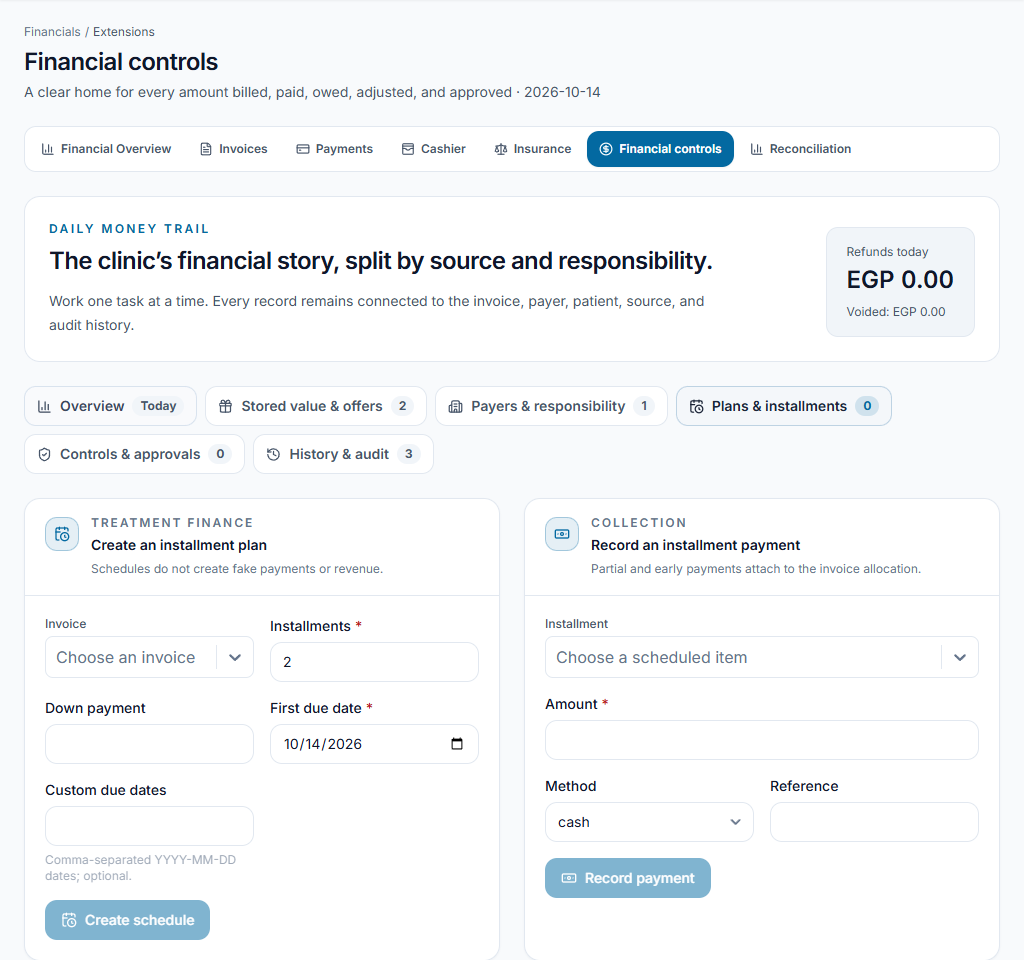
Create the installment schedule
Open Financial controls and Plans & installments. Choose an eligible invoice and enter the agreed amounts and due dates. Review the schedule before submitting; a schedule is not a payment.
Check the result Scheduled installments refer to the intended invoice and agreed dates.
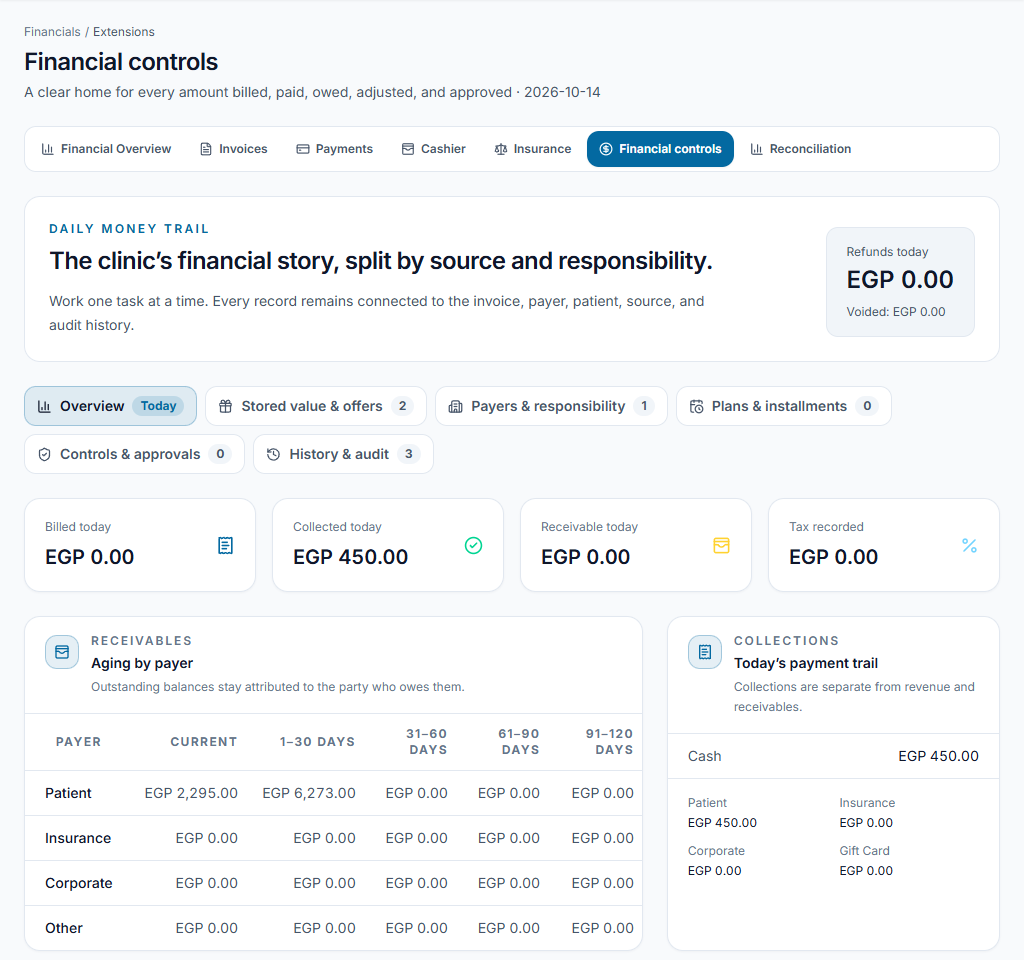
Review who owes the balance
Use Payers & responsibility and reconciliation to check patient, insurance or corporate responsibility. Record actual installment receipts through the permitted payment action; do not move balances between payers just to hide debt.
Check the result Outstanding money remains attributed to its responsible payer.
Correct an error through its workflow
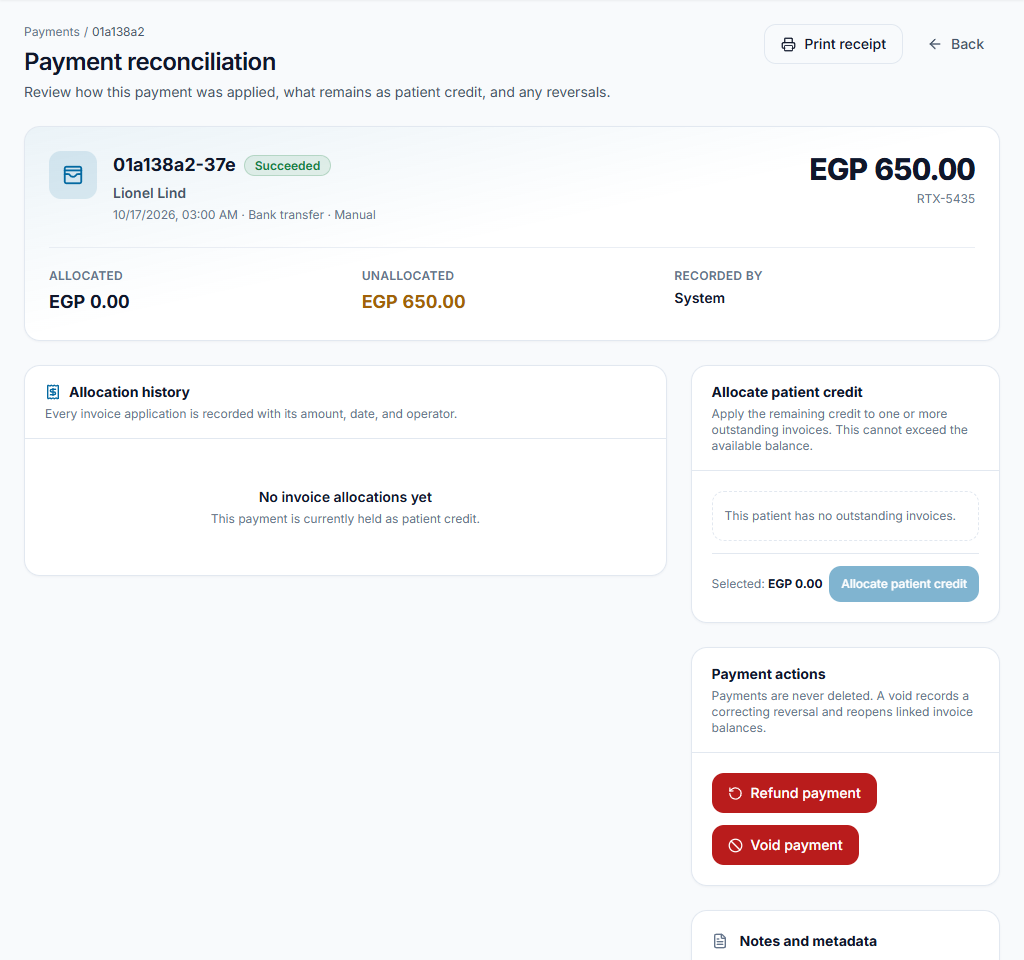
Open the mistaken payment or adjustment and use the permitted void/refund/approval controls with the required reason. Review the resulting history and balance. Never create a fictional opposite payment to make totals look right.
Check the result The correction has a traceable record and the updated balance is checked.
Worked example
A duplicated receipt is reviewed by the authorized finance user and corrected through the available void/refund process, not a made-up balancing payment.
Something not working?
An installment invoice is not selectable.
Check invoice eligibility, status, outstanding balance and permissions. Do not create another invoice merely to bypass the restriction.
The screen or action is unavailable.
Ask the clinic administrator to check your role, individual permissions, clinic context and enabled modules. Do not use another person’s account.
Team checklist
- Scheduled installments refer to the intended invoice and agreed dates.
- Outstanding money remains attributed to its responsible payer.
- The correction has a traceable record and the updated balance is checked.