

Request laboratory work and review results
Create the right order, track its status and record clinician review when results arrive.
By ClinBeam · Practical product workflow guidance
Complete the steps below and check each recorded result before moving to the next workflow.
Where to work: Lab orders → Results inbox / Visit room · Clinician
Before you start
- Correct patient, clinician's order and available tests/facility configuration.
- The selected clinic and record are correct.
- The module and required actions are available to your account.
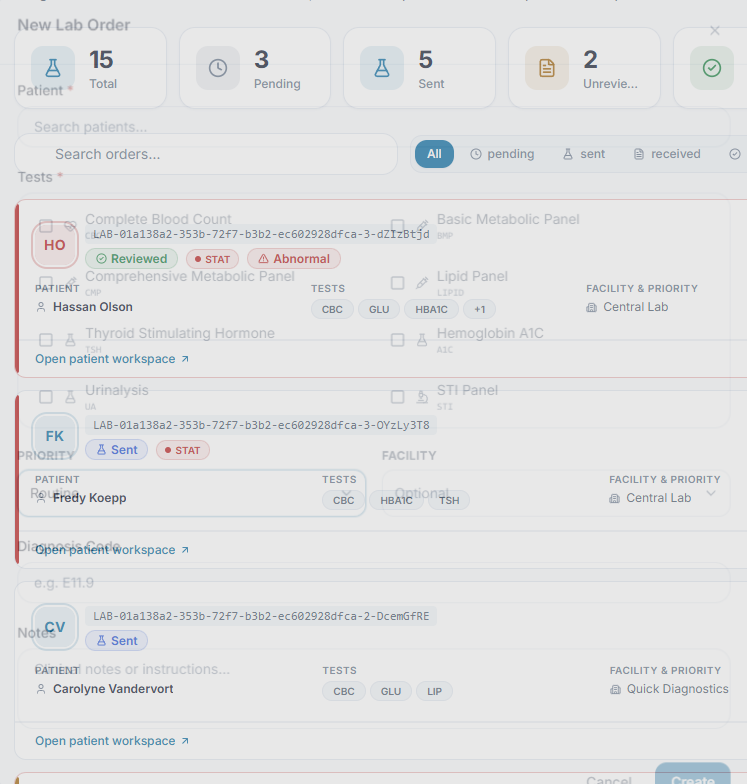
Create the order
Open Lab orders and use the new-order form. Select the patient, requested tests, priority and facility where applicable. Add relevant notes and review the selections before saving.
Check the result One order lists the intended tests for the correct patient.
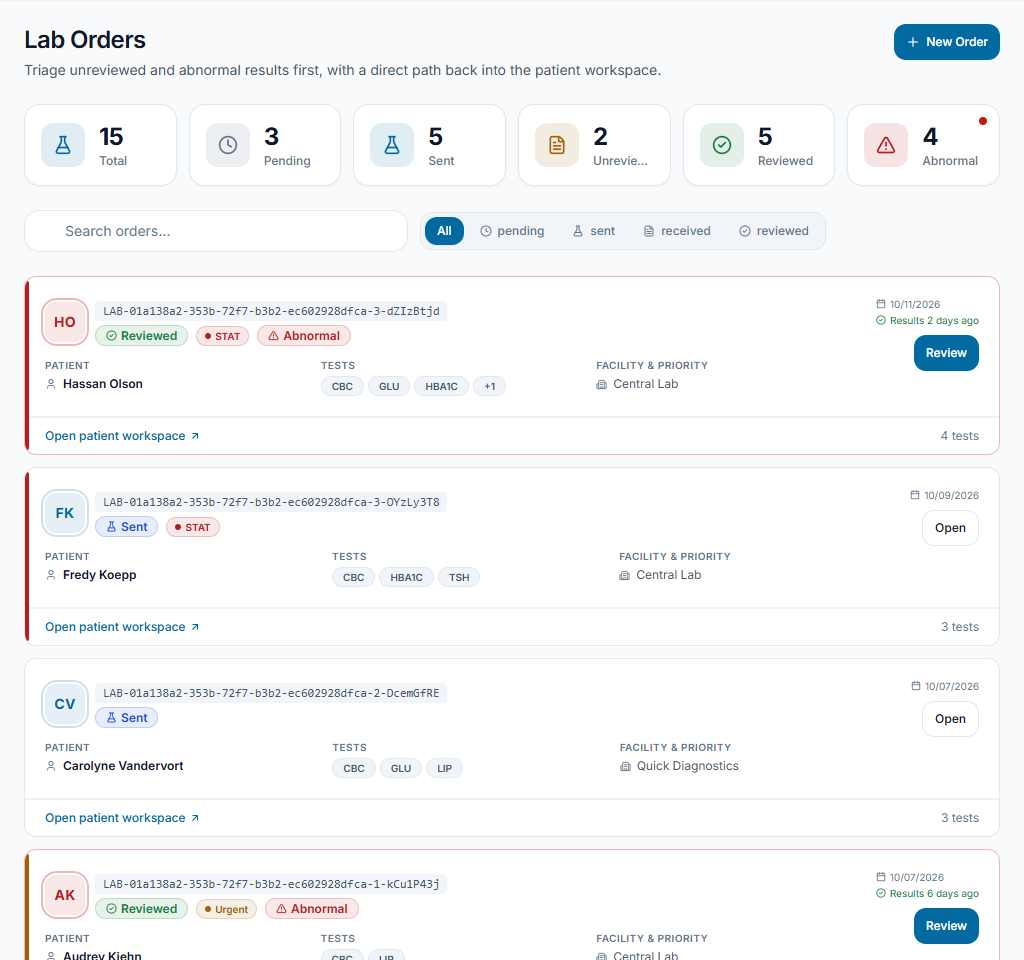
Track the order
Open its details to review status and recorded results. Use configured sending/printing actions if available; a saved order does not prove a laboratory received it or that an integration is active.
Check the result The team can distinguish a draft/saved order, a dispatched request and an available result.
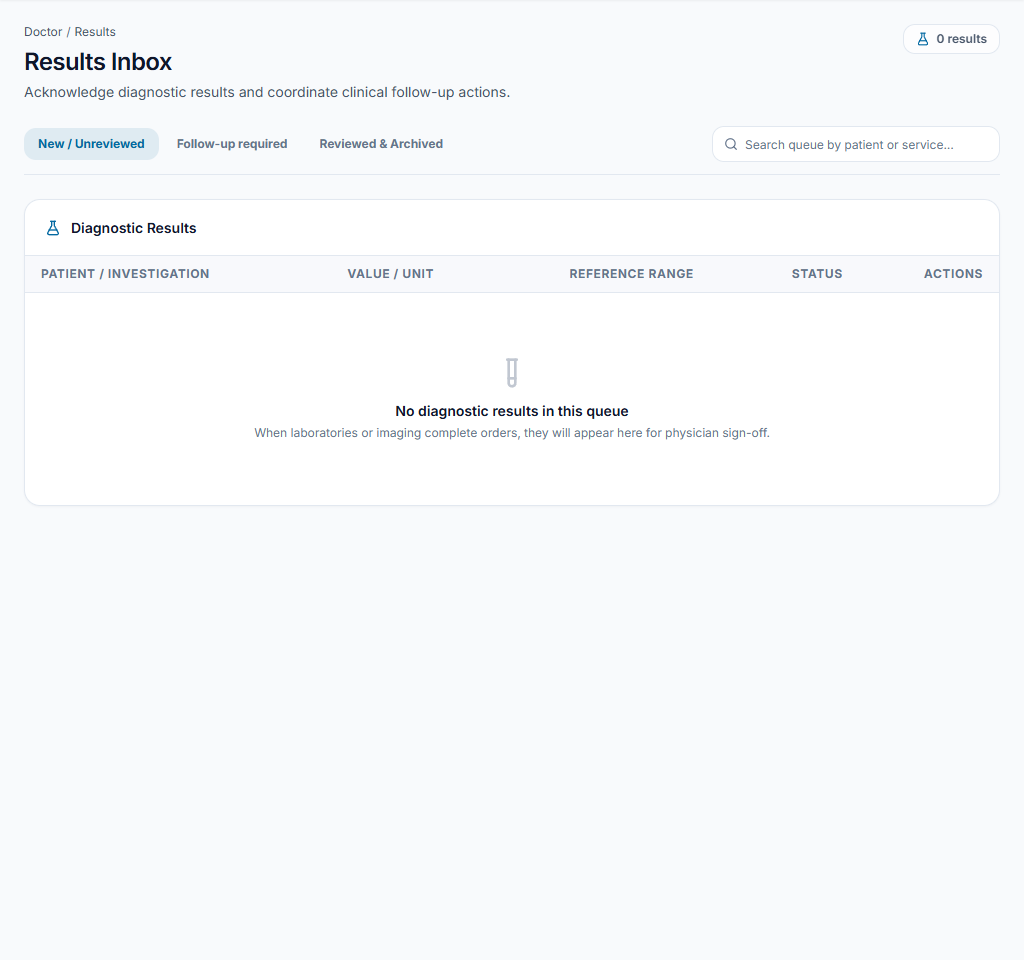
Record clinician review
Open Results inbox, identify the patient and result, review the actual finding and record the authorized review action. Arrange follow-up in the visit/appointment workflow when the clinician decides it is needed.
Check the result The result review is recorded and follow-up has an accountable owner.
Worked example
A result arrives after the visit. The doctor reviews it in Results inbox, then the team books the requested follow-up separately.
Something not working?
No tests or results are shown.
Check test configuration, selected clinic and order status. Missing results are not evidence of a normal finding; confirm receipt with the laboratory.
The screen or action is unavailable.
Ask the clinic administrator to check your role, individual permissions, clinic context and enabled modules. Do not use another person’s account.
Team checklist
- One order lists the intended tests for the correct patient.
- The team can distinguish a draft/saved order, a dispatched request and an available result.
- The result review is recorded and follow-up has an accountable owner.