

Register a patient and complete the profile
Search before creating a record, enter reliable details and resolve profile gaps.
By ClinBeam · Practical product workflow guidance
Complete the steps below and check each recorded result before moving to the next workflow.
Where to work: Patients → Add Patient → Patient workspace · Reception / Clinic administrator
Before you start
- Patient identity and contact details; access to the correct clinic.
- The selected clinic and record are correct.
- The module and required actions are available to your account.
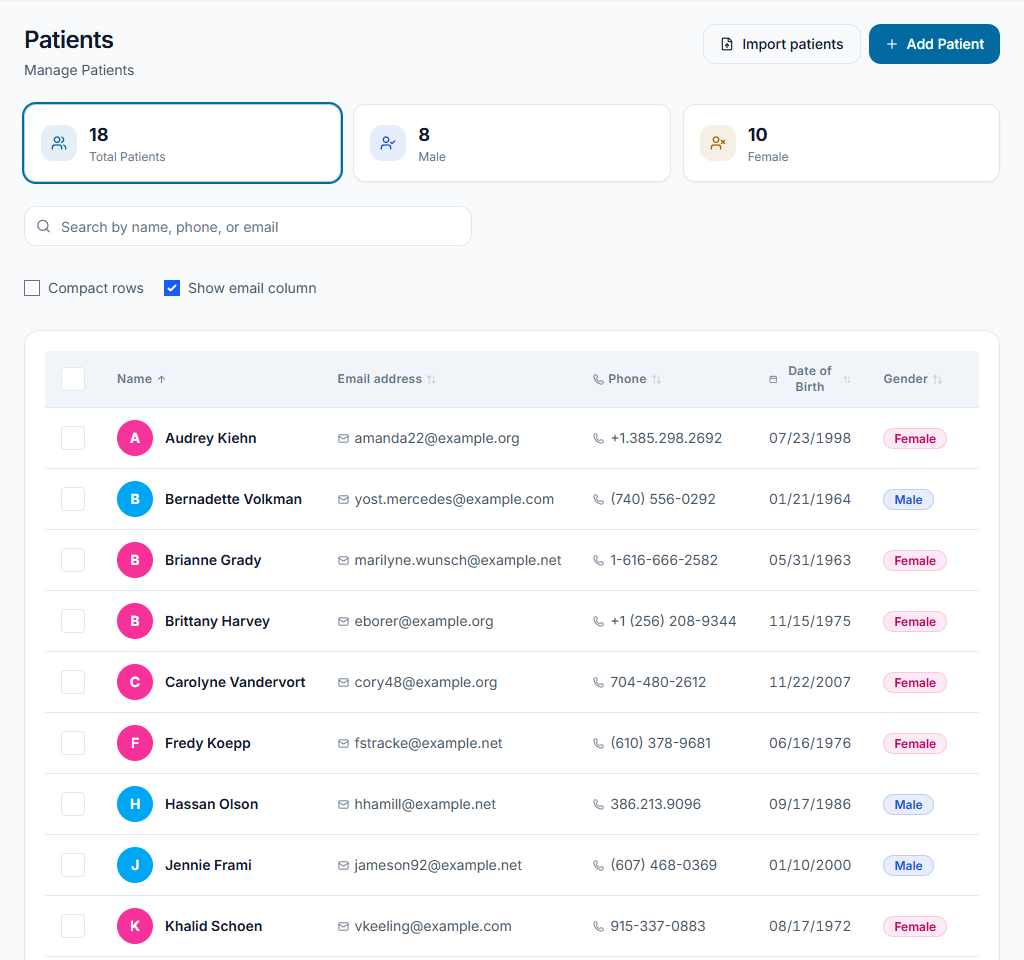
Search before adding
Open Patients and search by name or phone. Check identity before choosing an existing record. Use Add Patient only when no matching record exists.
Check the result One patient record is selected; similar names are not treated as proof of identity.
Enter and save details
Enter the required name fields and confirmed contact information. Type date of birth using the displayed format or choose the year and month in the picker. Leave unknown optional details blank instead of guessing.
Check the result The saved record shows the intended name and date of birth without validation errors.
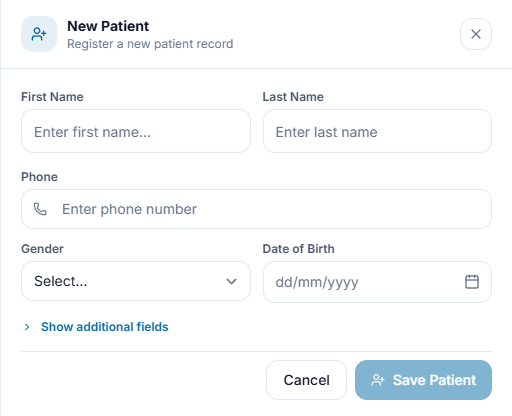
Complete the remaining profile
Open the patient workspace and review its profile-completion prompt. Use Edit patient for personal/contact fields and Medical history for clinical background; these are separate screens.
Check the result Confirmed missing details are completed in the appropriate record, not copied into unrelated notes.
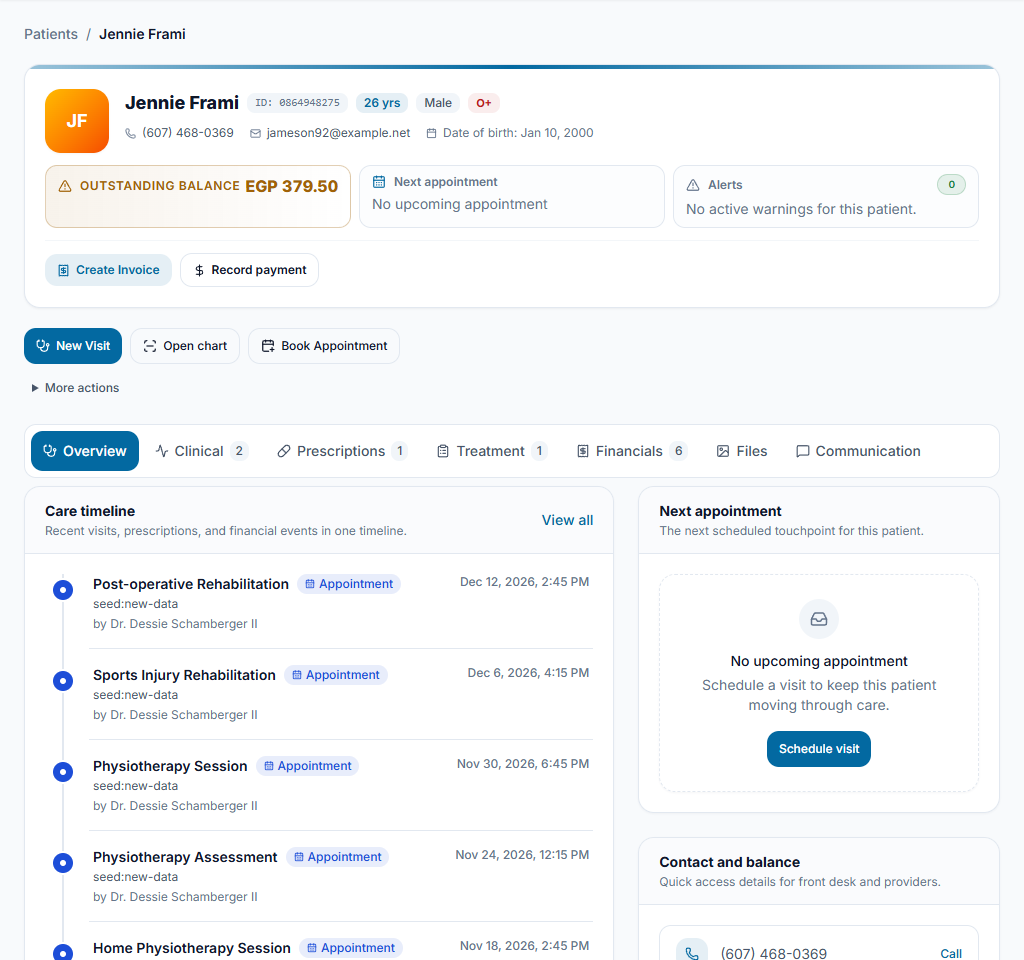
Worked example
A returning patient gives a new phone number. Find the existing record, confirm identity and edit the phone; do not create a second patient.
Something not working?
I cannot find medical history on Edit patient.
Use the Medical history link or the patient workspace. Edit patient manages profile details, not the entire clinical record.
The screen or action is unavailable.
Ask the clinic administrator to check your role, individual permissions, clinic context and enabled modules. Do not use another person’s account.
Team checklist
- One patient record is selected; similar names are not treated as proof of identity.
- The saved record shows the intended name and date of birth without validation errors.
- Confirmed missing details are completed in the appropriate record, not copied into unrelated notes.