

Read clinic reports and investigate outstanding balances
Choose the right period and follow totals back to their recorded visits and transactions.
By ClinBeam · Practical product workflow guidance
Complete the steps below and check each recorded result before moving to the next workflow.
Where to work: Reports; Operations; Financial reconciliation · Clinic administrator / Cashier
Before you start
- Correct clinic, intended reporting period and permission for the report.
- The selected clinic and record are correct.
- The module and required actions are available to your account.
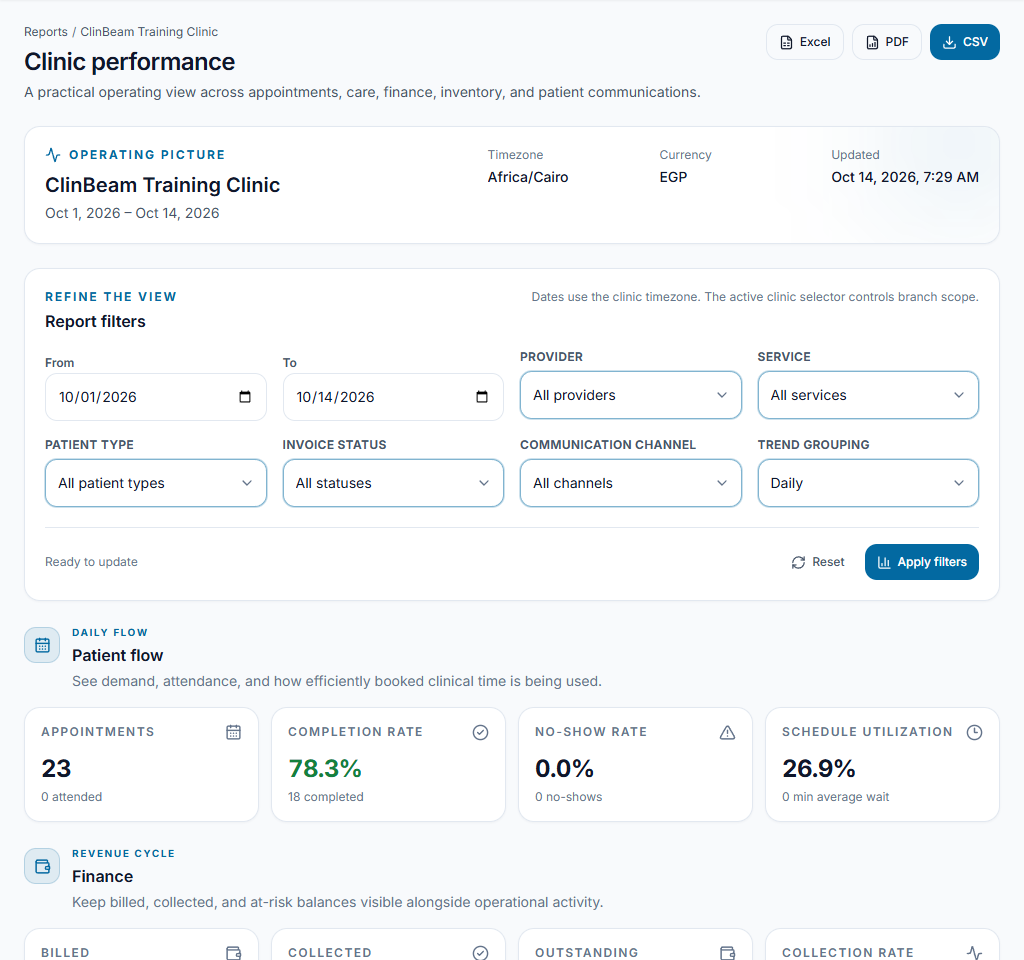
Set the reporting context
Open Reports and choose the intended date range/filters. Confirm the active clinic and displayed currency. Compare like periods before drawing conclusions.
Check the result The report refers to the intended clinic and period.
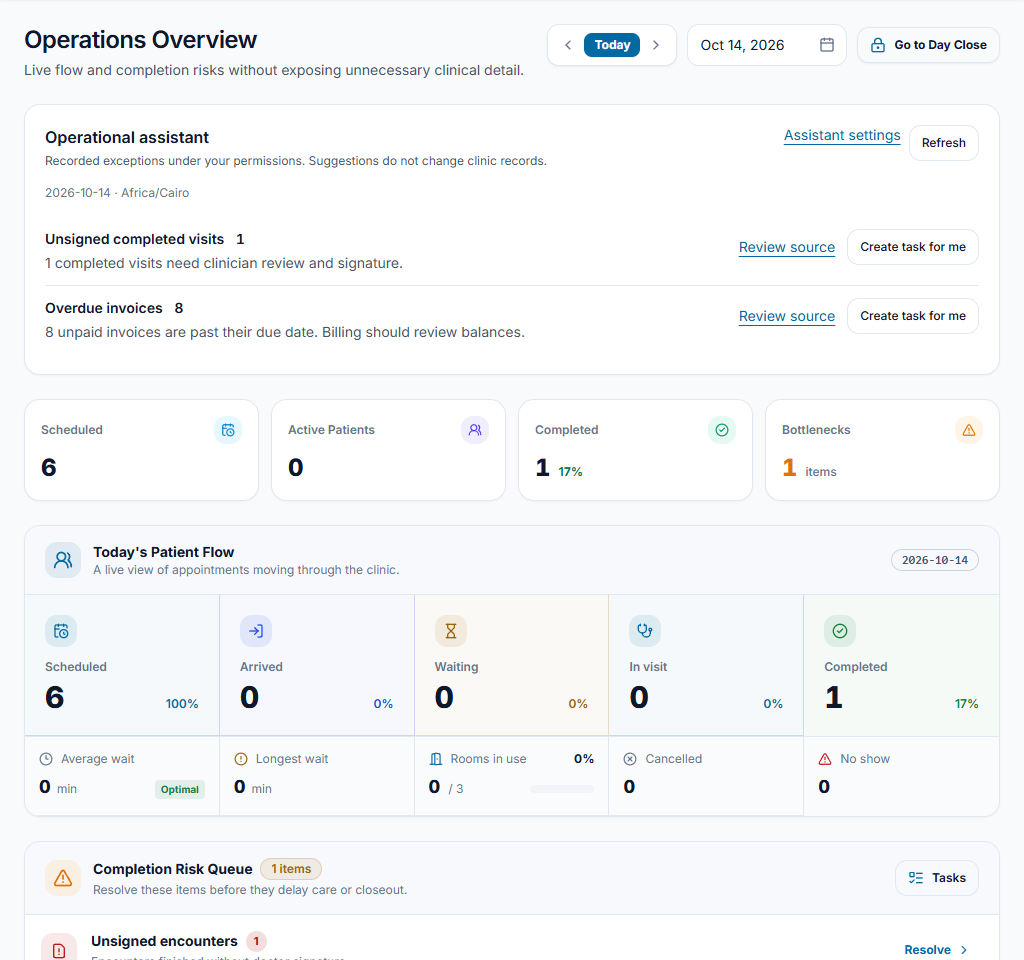
Distinguish activity from money
Review visit/service activity, invoices, payments and outstanding balances as separate measures. Open the relevant record lists to understand an unexpected total rather than editing records to match expectations.
Check the result Billed, collected and owed amounts are not treated as interchangeable.
Investigate and assign follow-up
Use outstanding/reconciliation views to identify responsible payer and source records. Check payment allocations, reversals and timing. Assign verified follow-up through tasks or the responsible team; exports require their own access.
Check the result Every issue has a source record and an accountable next step.
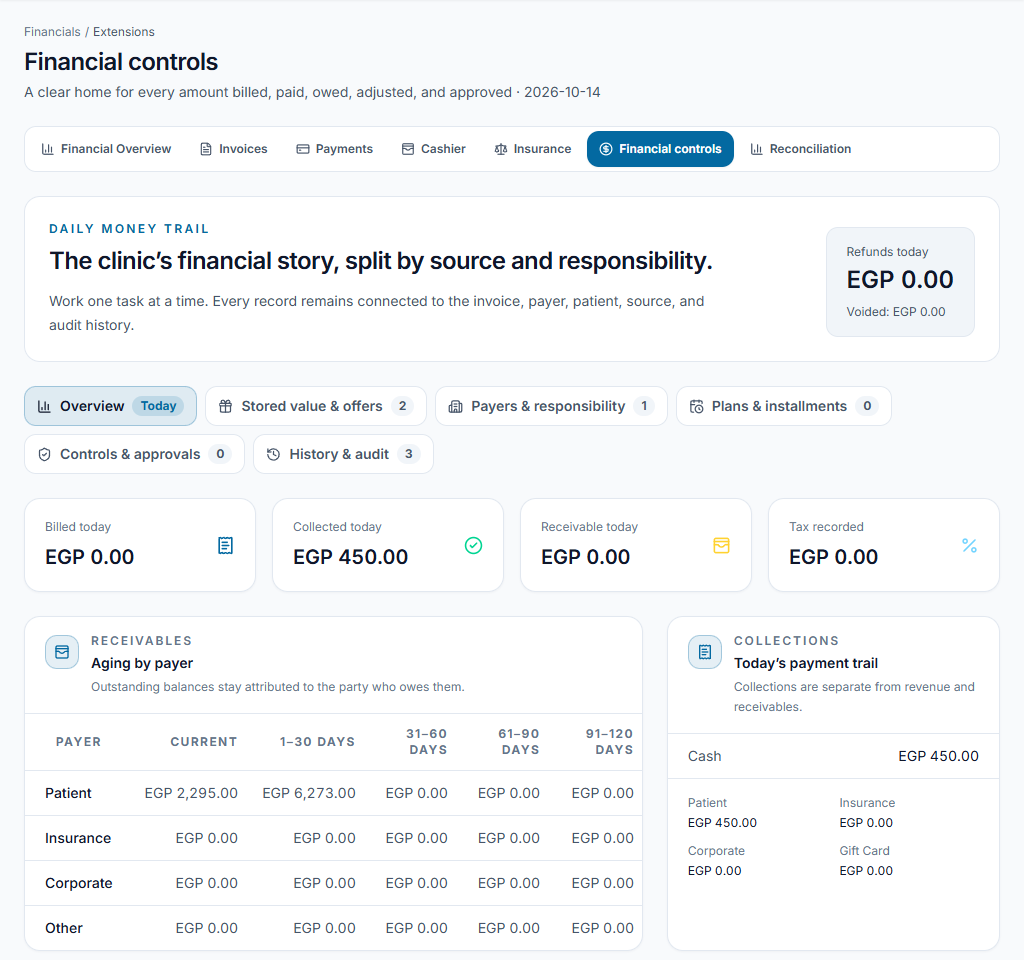
Worked example
Revenue and cash differ because some payments were cards and some invoices remain unpaid. Review the payment trail before assuming the report is wrong.
Something not working?
Two totals disagree.
Check period, clinic, currency, status, source and whether the measure is billing, collection or receivable. Compare the underlying records.
The screen or action is unavailable.
Ask the clinic administrator to check your role, individual permissions, clinic context and enabled modules. Do not use another person’s account.
Team checklist
- The report refers to the intended clinic and period.
- Billed, collected and owed amounts are not treated as interchangeable.
- Every issue has a source record and an accountable next step.