

Document a consultation and complete the visit
Start the encounter, record clinical work and review the handoff before completion.
By ClinBeam · Practical product workflow guidance
Complete the steps below and check each recorded result before moving to the next workflow.
Where to work: My Day → patient Visit room · Clinician
Before you start
- Correct patient/appointment, clinician access and reviewed history/allergies.
- The selected clinic and record are correct.
- The module and required actions are available to your account.
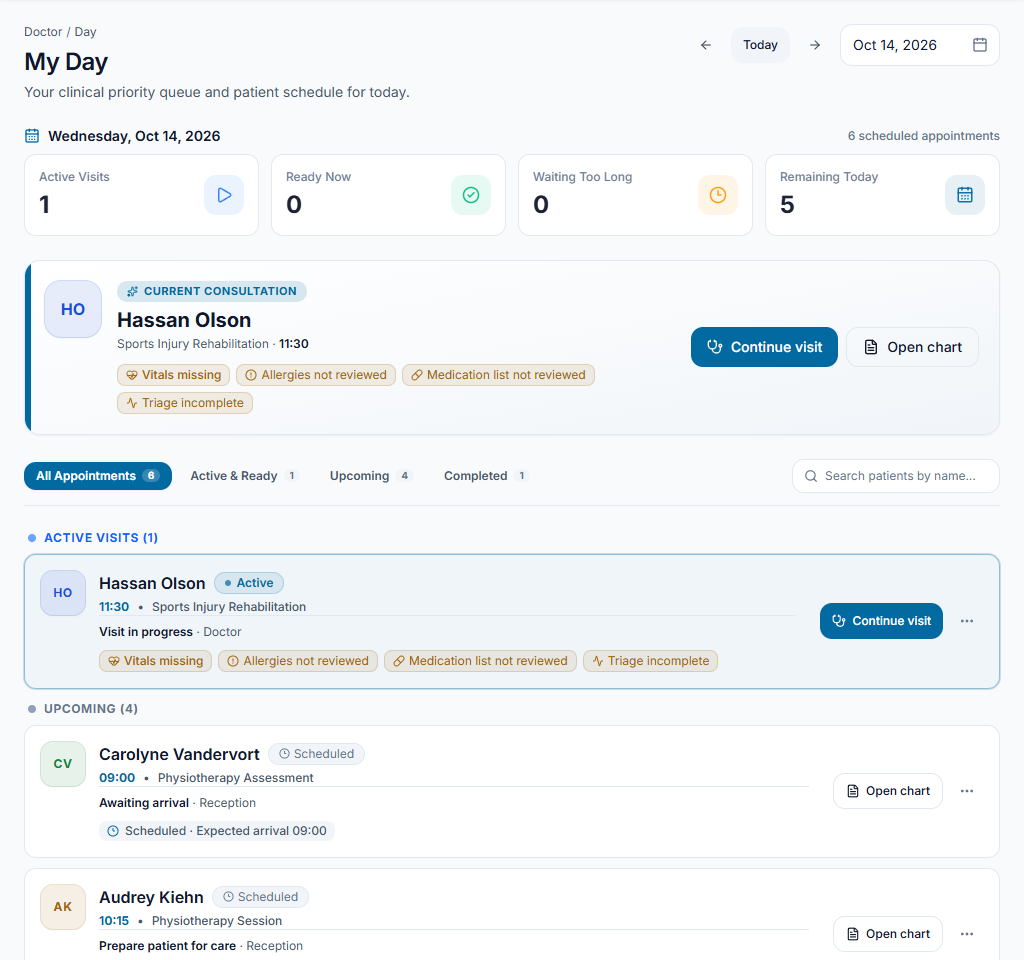
Start the intended visit
Open the patient from My Day or the workspace and choose Start visit. Review history and the appointment context before writing. Starting a visit creates its clinical encounter; merely opening the workspace does not.
Check the result An active encounter is shown for the intended patient.
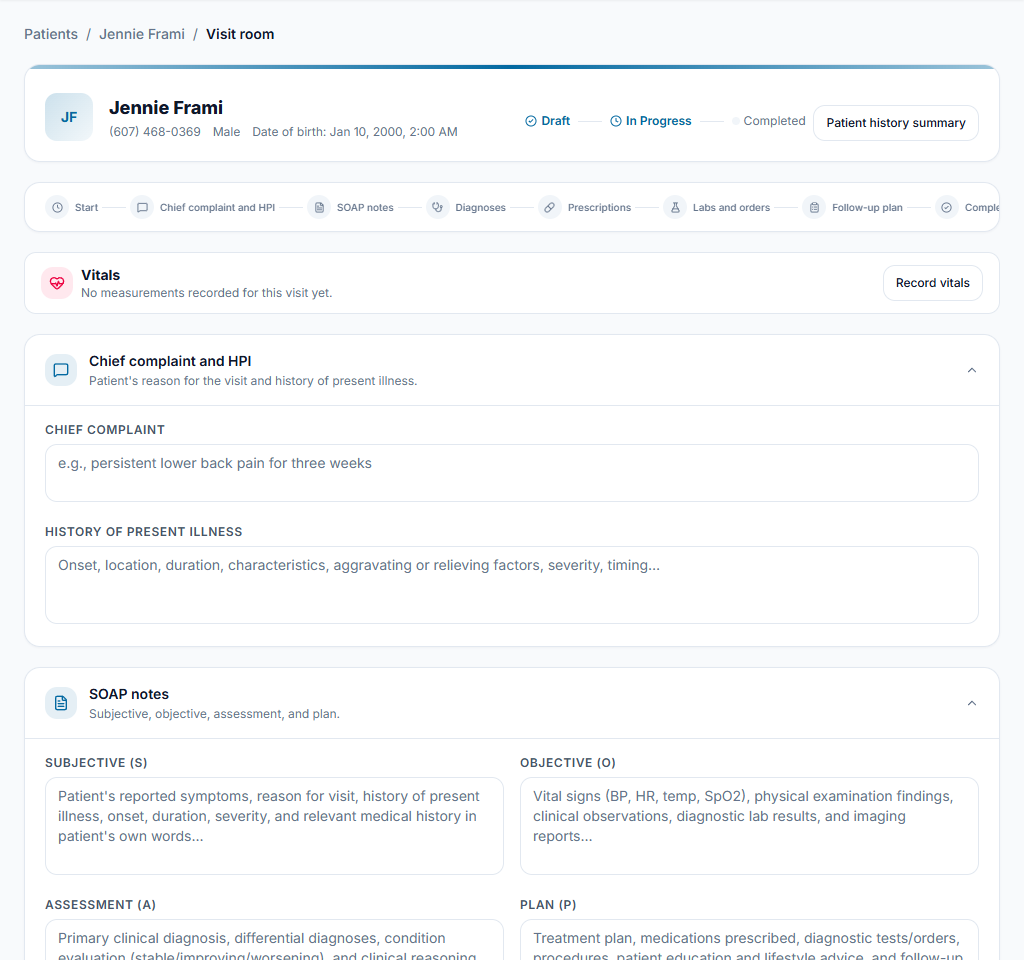
Record and save the consultation
Enter the complaint, history and SOAP sections. Use Record vitals for measured observations and check the displayed units before saving them. Add confirmed diagnoses, prescriptions, orders and follow-up details using their controls. Use Save draft to store the clinical record and check success before leaving. A device recovery copy is not a server save.
Check the result Notes and linked clinical items are recorded; typed or device-only drafts are not mistaken for a stored clinical record.
Review and complete
Use the completion review to check notes, diagnoses, orders, instructions and any required dental review. Confirm complete visit only after the clinical work is finished. Use the patient summary and checkout handoff as appropriate; signing remains a separate authorized action where required.
Check the result The visit is completed and available for the next team member; required signing is not assumed.
Worked example
A clinician finishes the consultation, checks the follow-up instructions and confirms completion. The cashier then handles payment; clinical completion does not mean paid.
Something not working?
The draft save failed.
Keep the screen open, review the displayed validation/connection issue and retry. Do not complete or leave the visit until you have checked what was saved.
The screen or action is unavailable.
Ask the clinic administrator to check your role, individual permissions, clinic context and enabled modules. Do not use another person’s account.
Team checklist
- An active encounter is shown for the intended patient.
- Notes and linked clinical items are recorded; typed or device-only drafts are not mistaken for a stored clinical record.
- The visit is completed and available for the next team member; required signing is not assumed.