

Set clinician schedules and record absences
Make bookable times match the actual working week and planned time off.
By ClinBeam · Practical product workflow guidance
Complete the steps below and check each recorded result before moving to the next workflow.
Where to work: Appointments → Schedule; Services; Regional settings · Clinic administrator / Clinician
Before you start
- Clinician account, clinic timezone and service durations agreed by the team.
- The selected clinic and record are correct.
- The module and required actions are available to your account.
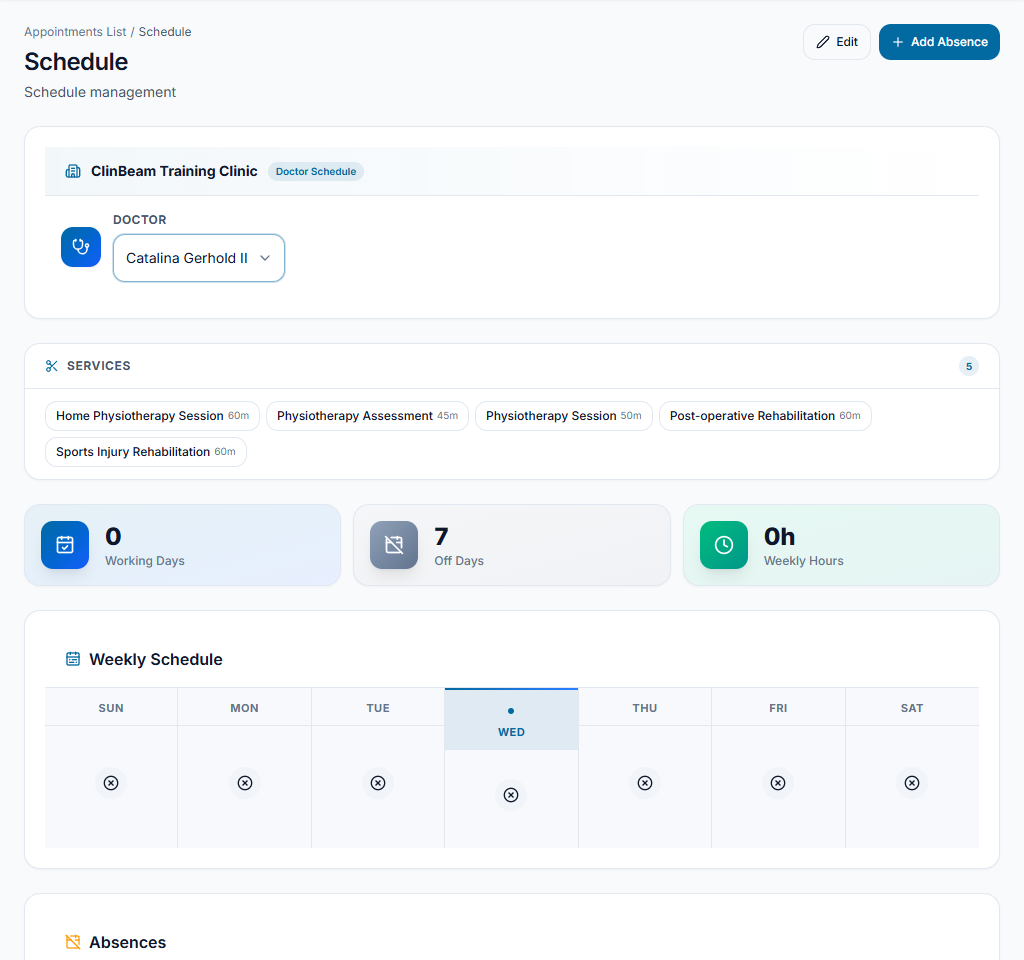
Review the working week
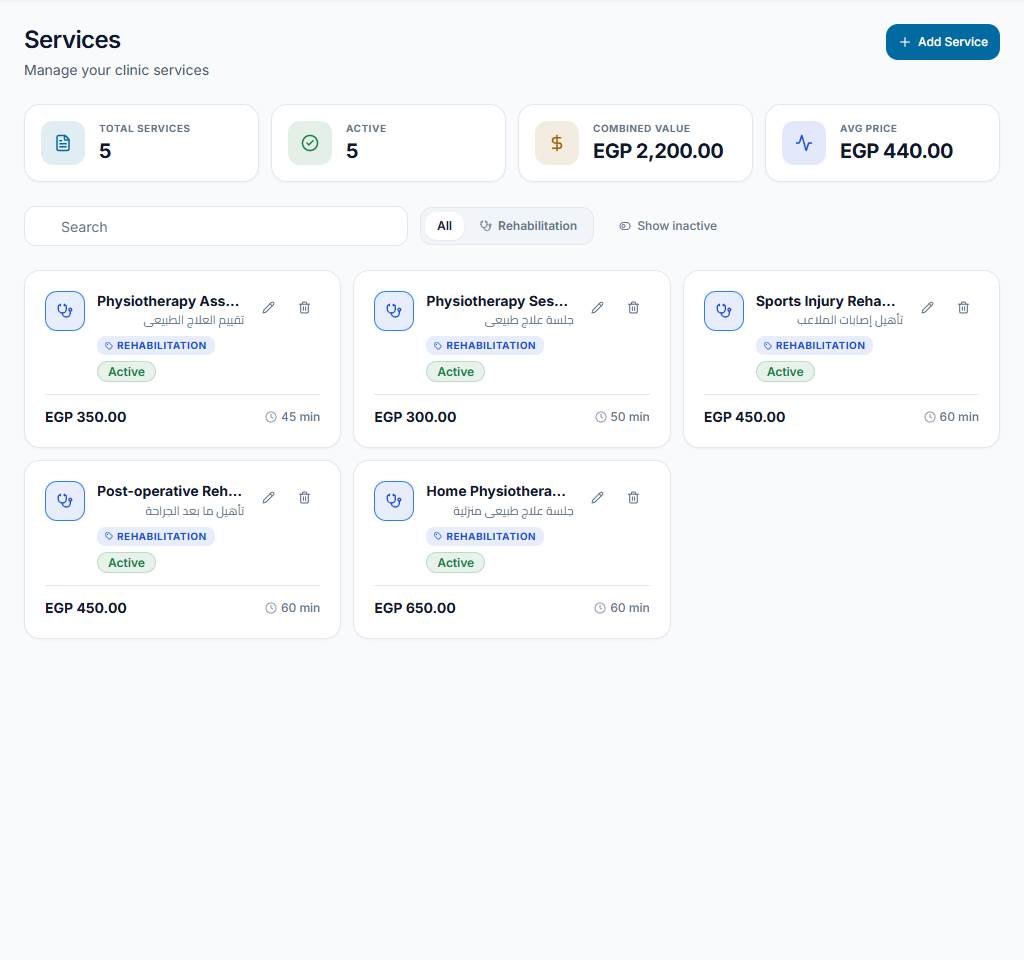
Open Schedule and choose the clinician. Check working days, opening/closing times and availability against the clinic timezone. Review service duration so appointment slots represent a realistic visit.
Check the result Availability corresponds to the clinician and clinic's actual working hours.
Save the schedule
Edit the clinician's allowed schedule and save. Review the displayed week again; schedule setup does not move existing appointments automatically.
Check the result The saved schedule shows the intended hours; existing bookings are reviewed separately.
Record an absence
Use the absence controls for planned time off. Review affected bookings and reschedule or contact patients through the appropriate workflow. Remove an absence only when availability is genuinely restored.
Check the result Time off and patient bookings no longer conflict silently.
Worked example
A doctor is away next Monday. Record the absence, then review Monday's existing bookings and agree new times with patients.
Something not working?
Times look shifted.
Check the clinic timezone and displayed date/time format before editing appointments. Do not repeatedly move bookings to compensate for incorrect regional setup.
The screen or action is unavailable.
Ask the clinic administrator to check your role, individual permissions, clinic context and enabled modules. Do not use another person’s account.
Team checklist
- Availability corresponds to the clinician and clinic's actual working hours.
- The saved schedule shows the intended hours; existing bookings are reviewed separately.
- Time off and patient bookings no longer conflict silently.