

Message patients and configure reminders
Choose the intended recipient/channel, use approved templates and check delivery status.
By ClinBeam · Practical product workflow guidance
Complete the steps below and check each recorded result before moving to the next workflow.
Where to work: Messaging; Communication settings / Templates · Reception / Clinic administrator
Before you start
- Verified contact details, communication preferences and a configured provider for external channels.
- The selected clinic and record are correct.
- The module and required actions are available to your account.
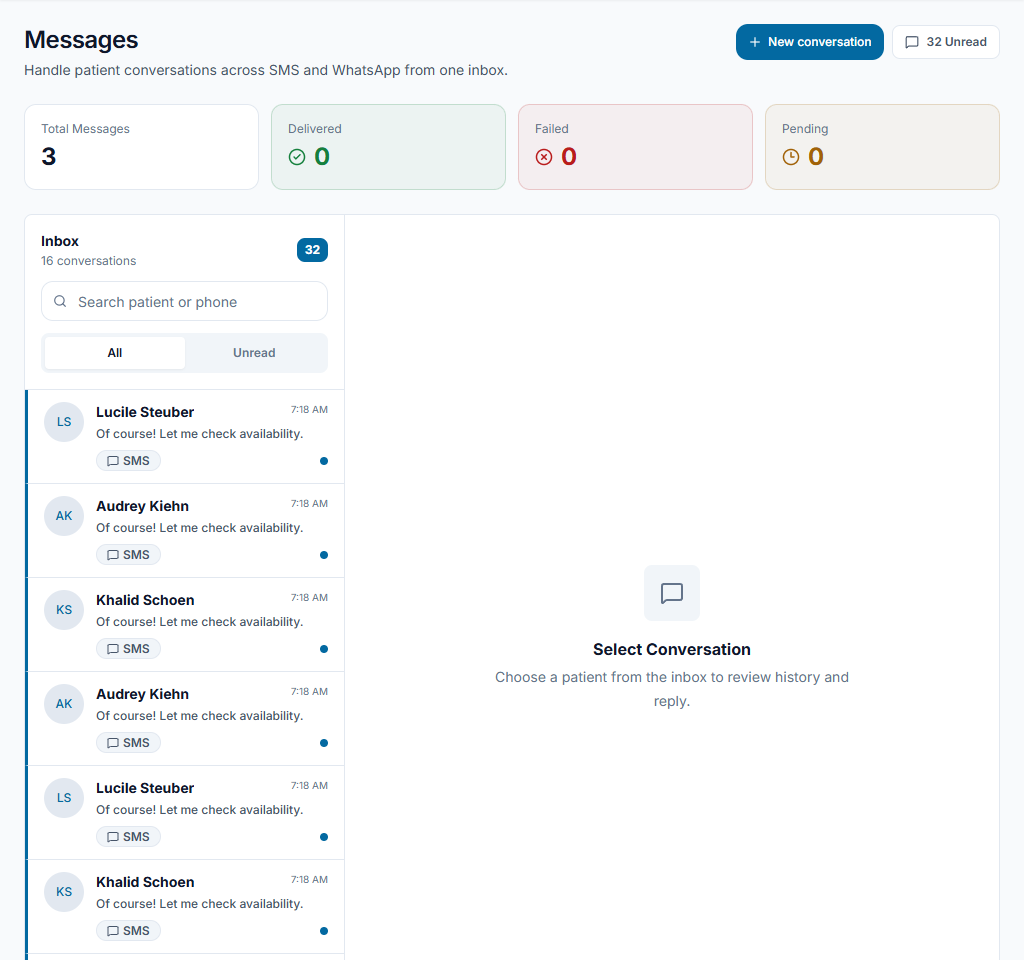
Review the recipient and channel
Open Messaging or the patient's permitted contact action. Confirm the patient, phone/email and preferred channel. Do not assume an old number still belongs to the patient.
Check the result The intended recipient and channel are verified before sending.
Prepare the message
Use the clinic's reviewed template or compose a relevant message. Administrators review provider and template setup in Communication settings. Preview substitutions and avoid unnecessary clinical details.
Check the result The message preview addresses the right recipient with appropriate content.
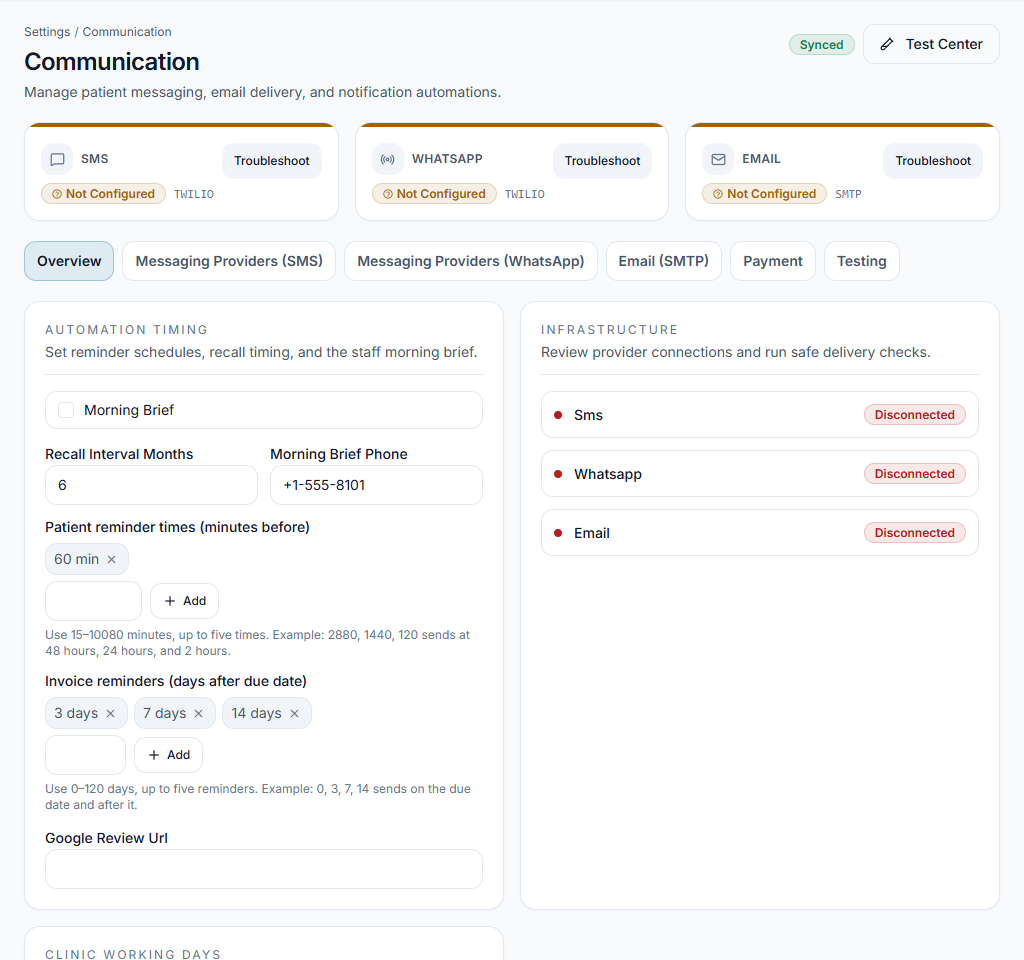
Check the recorded outcome
Send through the permitted action and review message/log status. Queued, sent and delivered are different states. Investigate failures before retrying so patients do not receive repeated copies.
Check the result The team knows whether the message was queued, delivered or needs follow-up.
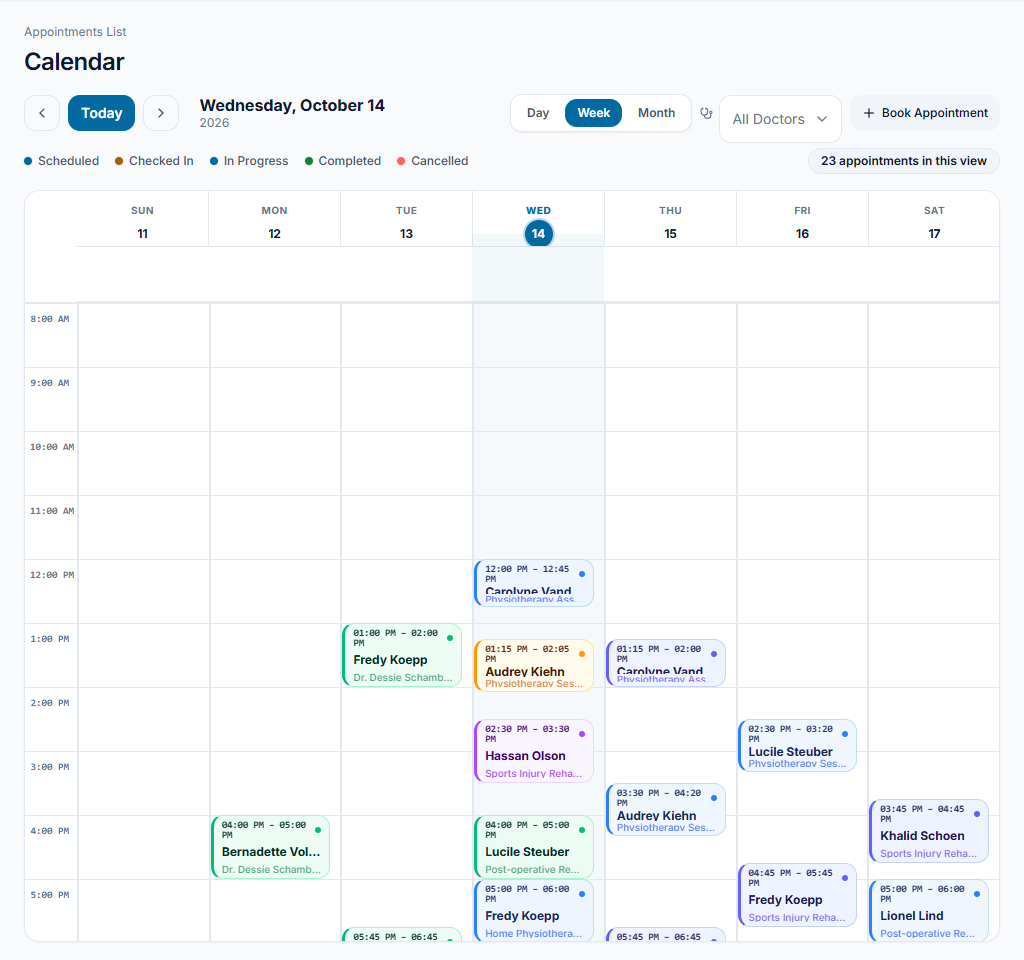
Worked example
Send a follow-up reminder to the confirmed contact and review its status; a saved appointment does not guarantee a WhatsApp message was delivered.
Something not working?
SMS or WhatsApp is unavailable.
Ask the administrator to review provider configuration, channel availability, templates and costs. Local contact links and external message delivery are different capabilities.
The screen or action is unavailable.
Ask the clinic administrator to check your role, individual permissions, clinic context and enabled modules. Do not use another person’s account.
Team checklist
- The intended recipient and channel are verified before sending.
- The message preview addresses the right recipient with appropriate content.
- The team knows whether the message was queued, delivered or needs follow-up.