

Book, reschedule and resolve appointments
Choose the patient, service, clinician and time, then keep appointment status accurate.
By ClinBeam · Practical product workflow guidance
Complete the steps below and check each recorded result before moving to the next workflow.
Where to work: Appointments → Calendar / appointment details · Reception / Clinic administrator
Before you start
- Registered patient, enabled service and a clinician with available working hours.
- The selected clinic and record are correct.
- The module and required actions are available to your account.
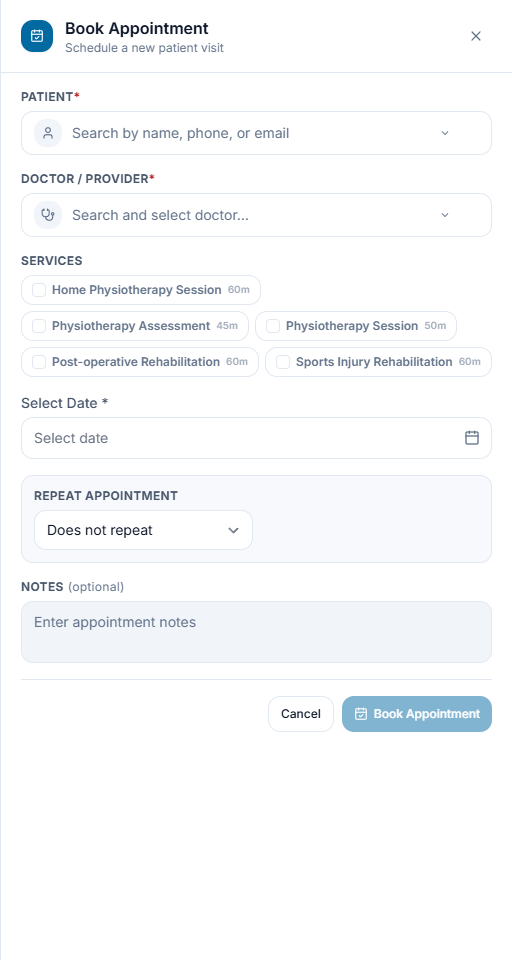
Choose an available visit
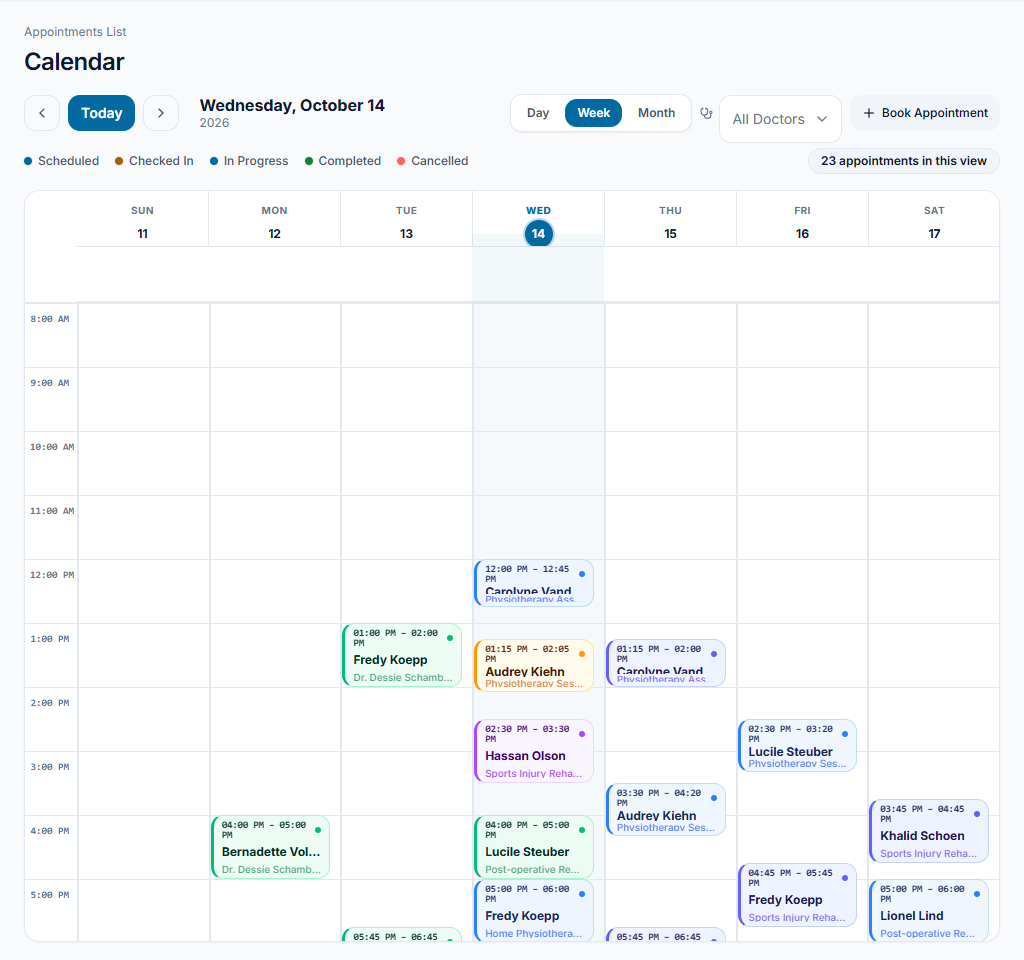
Open the calendar on the intended date. Use Book Appointment, select the existing patient, service and clinician, then review an available start time and duration before saving.
Check the result The appointment appears on the correct date and clinician schedule.
Change the booking deliberately
Open appointment details to review or reschedule. Choose the replacement time and confirm the change; do not create another appointment as a substitute. Use cancellation when the visit will not take place.
Check the result One intended booking remains and its time/status reflect the agreed change.
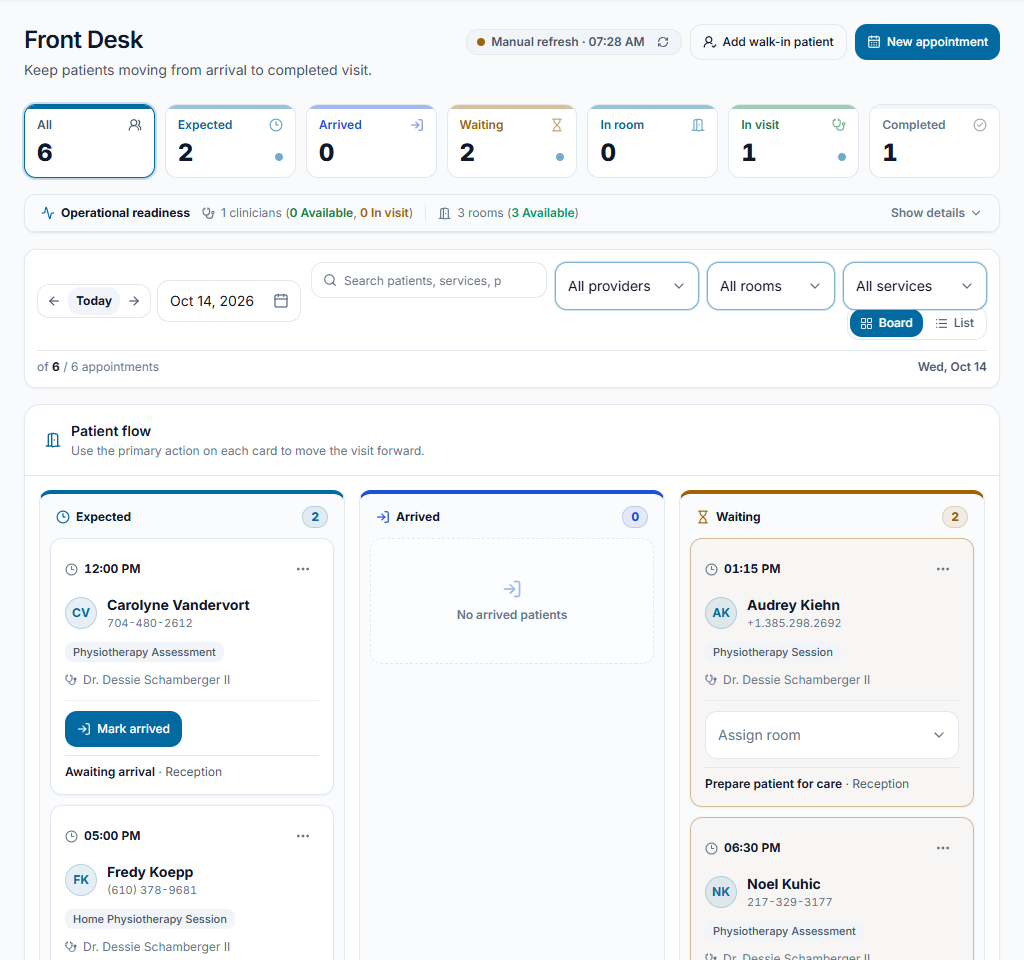
Separate booking from arrival
Confirmation records the booking response. At physical arrival, use reception arrival and check-in actions. Resolve missed visits using the permitted no-show/cancellation action rather than completing a visit that did not happen.
Check the result Calendar and queue stages describe the real visit.
Worked example
A patient moves a Thursday visit to Saturday. Reschedule the original appointment, check the Saturday clinician schedule and confirm the new time.
Something not working?
No time is available.
Check the service duration, clinician schedule, absences, working days and overlapping bookings. Ask the administrator to correct setup rather than force an unavailable slot.
The screen or action is unavailable.
Ask the clinic administrator to check your role, individual permissions, clinic context and enabled modules. Do not use another person’s account.
Team checklist
- The appointment appears on the correct date and clinician schedule.
- One intended booking remains and its time/status reflect the agreed change.
- Calendar and queue stages describe the real visit.