

Run a patient survey or outreach campaign
Prepare a relevant audience/message and review responses without confusing outreach with clinical care.
By ClinBeam · Practical product workflow guidance
Complete the steps below and check each recorded result before moving to the next workflow.
Where to work: Surveys / Campaigns · Clinic administrator
Before you start
- Enabled modules, approved audience/content and configured delivery channels.
- The selected clinic and record are correct.
- The module and required actions are available to your account.
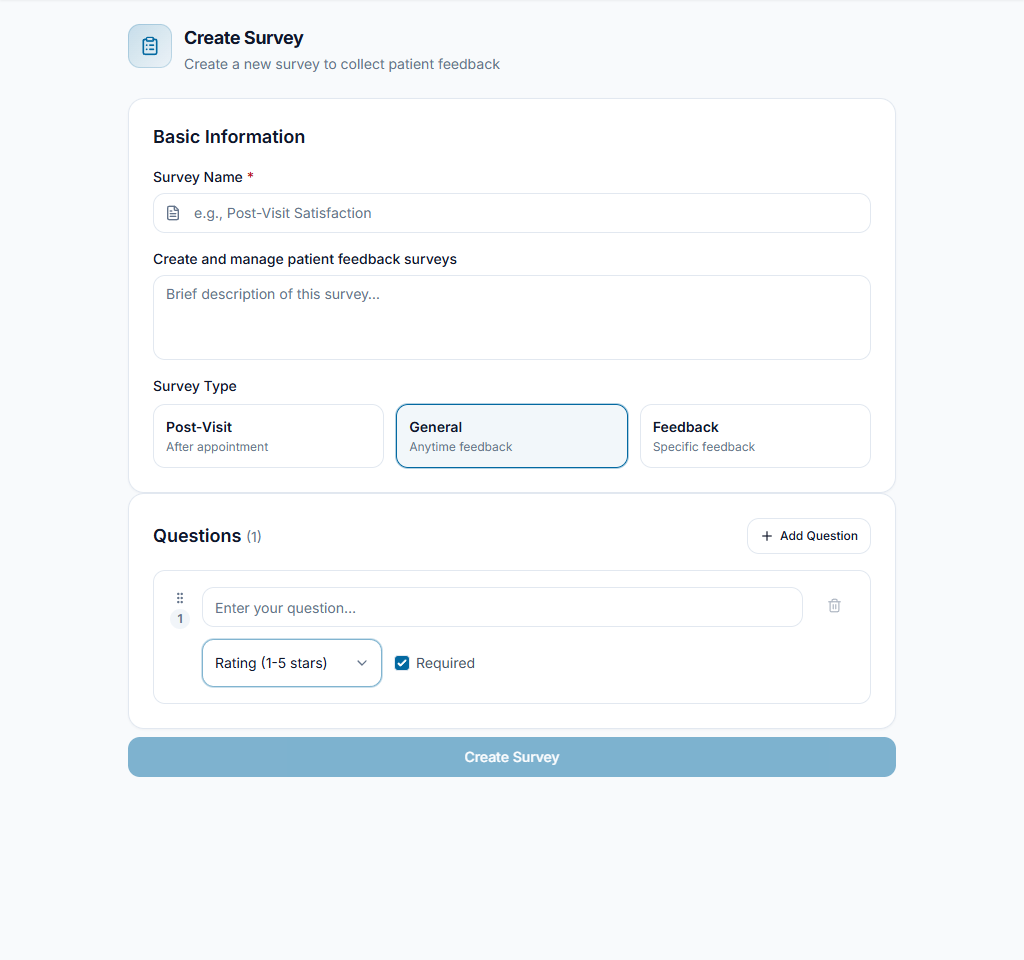
Prepare the content
Create a survey or campaign using its form. Review questions/message, language and purpose. Keep patient information out of public-facing survey text and use the clinic's approved outreach policy.
Check the result The draft is relevant, readable and ready for review.
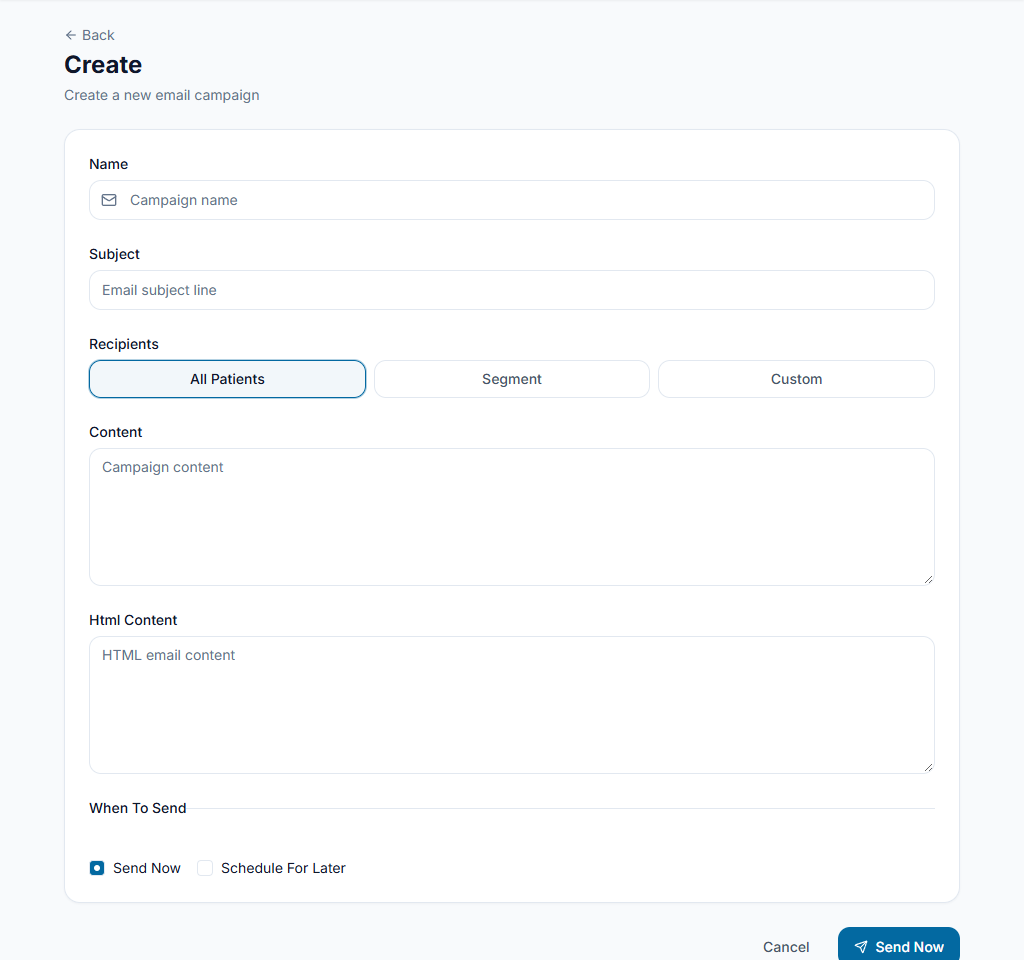
Review the audience and dispatch
Check the selected recipients and available channel before using send. Confirm provider setup and any delivery limits/costs. Do not send to everyone merely because the filter permits it.
Check the result The intended audience and dispatch action are deliberate.
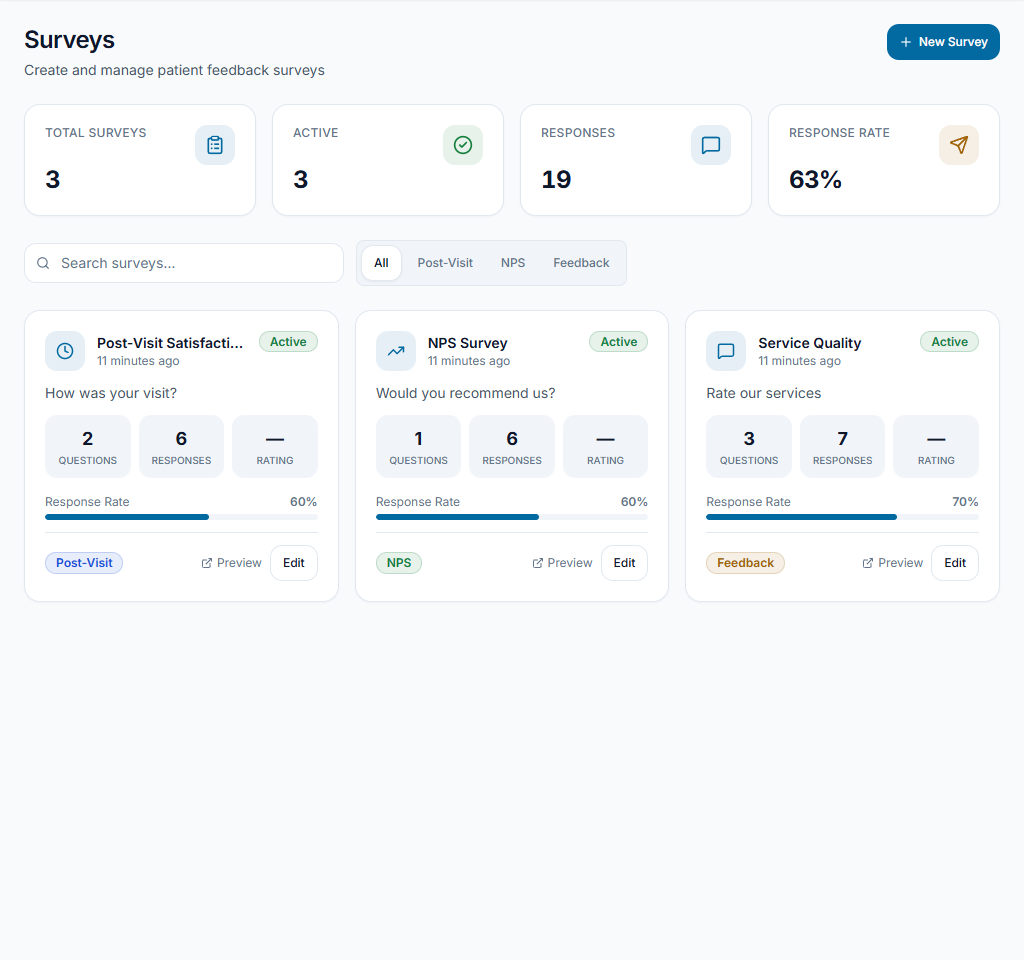
Review results and follow-up
Open survey results/responses or campaign details to inspect actual responses and delivery outcomes. Assign follow-up to the responsible staff member. An unanswered survey does not prove satisfaction or dissatisfaction.
Check the result Decisions are based on recorded responses and real delivery status.
Worked example
Send a reviewed feedback survey to the intended recent-visit audience and review submitted responses separately from message delivery counts.
Something not working?
No responses are visible.
Check dispatch/delivery, date filters and whether anyone submitted a response. Do not invent feedback or treat silence as a completed survey.
The screen or action is unavailable.
Ask the clinic administrator to check your role, individual permissions, clinic context and enabled modules. Do not use another person’s account.
Team checklist
- The draft is relevant, readable and ready for review.
- The intended audience and dispatch action are deliberate.
- Decisions are based on recorded responses and real delivery status.