

Give staff the right access and secure accounts
Use individual accounts, role permissions and reviewed account-security settings.
By ClinBeam · Practical product workflow guidance
Complete the steps below and check each recorded result before moving to the next workflow.
Where to work: Staff; personal Profile / Sessions · Clinic administrator
Before you start
- Clinic administrator access and agreed responsibilities for each staff member.
- The selected clinic and record are correct.
- The module and required actions are available to your account.
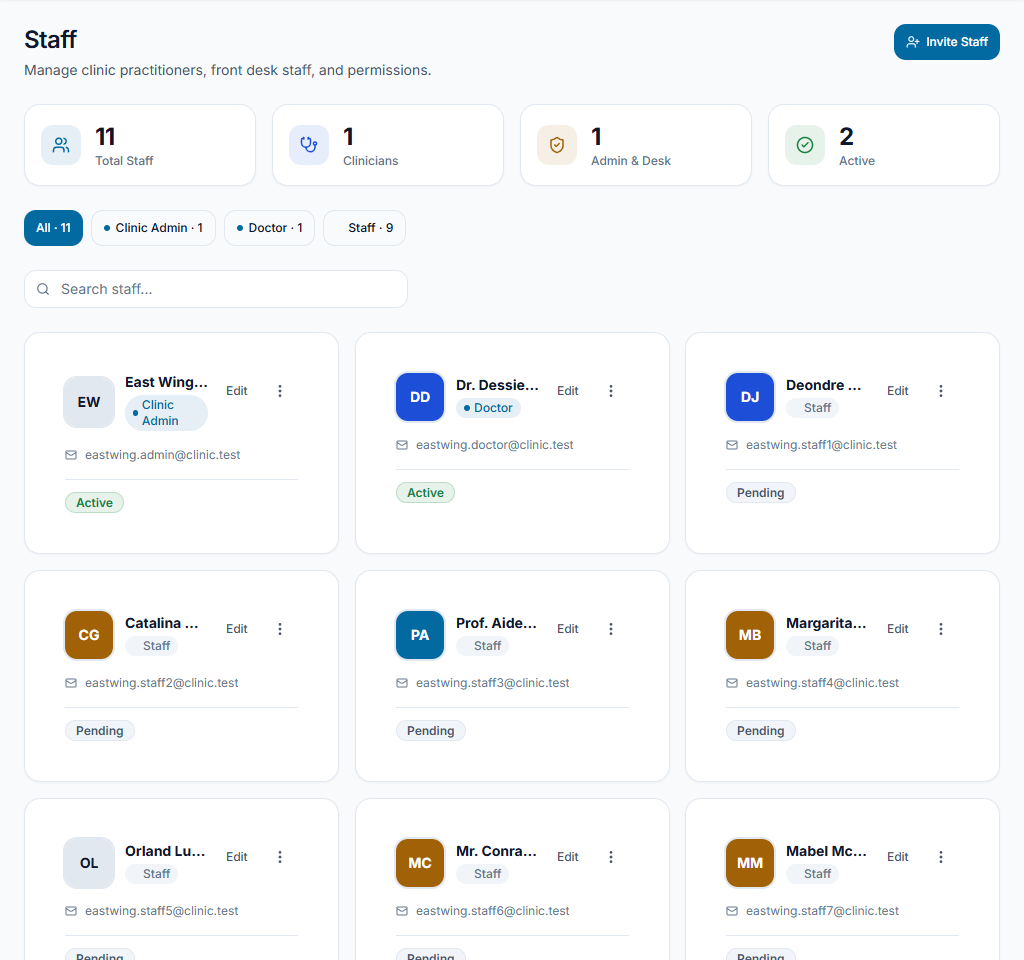
Add the staff account
Open Staff and use the staff form for the intended person. Review email, role and clinician fields where applicable. Use individual accounts instead of sharing the administrator's credentials.
Check the result The account belongs to the intended worker and clinic.
Review effective permissions
Open staff access/permission overrides and grant only the required work. Check that role, individual grants and module availability align. Ask the worker to check access in their own account; visible navigation is not authority to perform every action.
Check the result Access matches responsibility without exposing unrelated clinical/financial work.
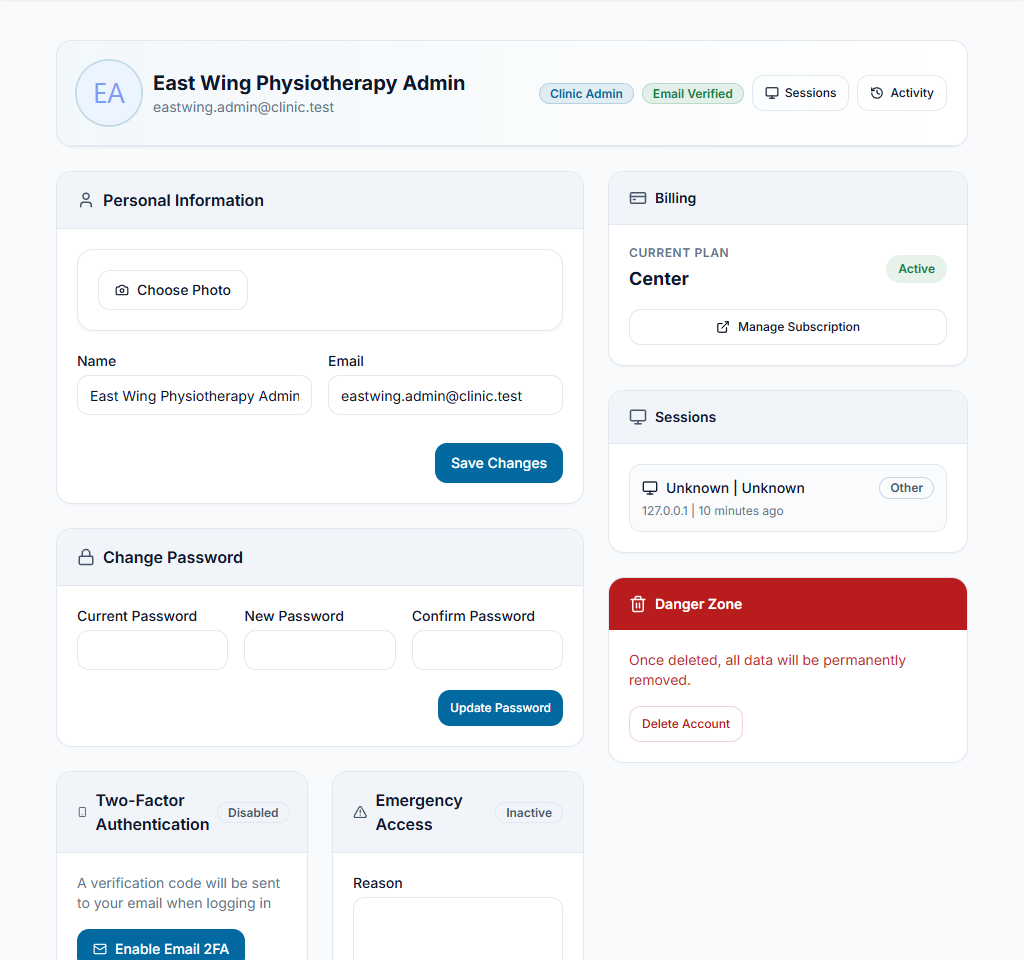
Review account security
In the worker's personal profile, review password, two-factor and active-session options. Use the configured security workflow and securely keep recovery information. Do not publish keys or recovery codes in screenshots/messages.
Check the result The worker controls their own credentials and recognizes their active sessions.
Worked example
Reception needs appointment and patient-profile work, while a cashier needs the approved financial actions. Neither should use a shared administrator account.
Something not working?
A granted action is still missing.
Review effective role/overrides, clinic membership and feature availability. Do not grant every permission as a shortcut.
The screen or action is unavailable.
Ask the clinic administrator to check your role, individual permissions, clinic context and enabled modules. Do not use another person’s account.
Team checklist
- The account belongs to the intended worker and clinic.
- Access matches responsibility without exposing unrelated clinical/financial work.
- The worker controls their own credentials and recognizes their active sessions.