

Import patient records and review migration results
Use the supported template, inspect a preview and verify records before relying on imported data.
By ClinBeam · Practical product workflow guidance
Complete the steps below and check each recorded result before moving to the next workflow.
Where to work: Patients → Import; onboarding migration where available · Clinic administrator
Before you start
- Authorized source data, supported template and an approved backup/review plan.
- The selected clinic and record are correct.
- The module and required actions are available to your account.
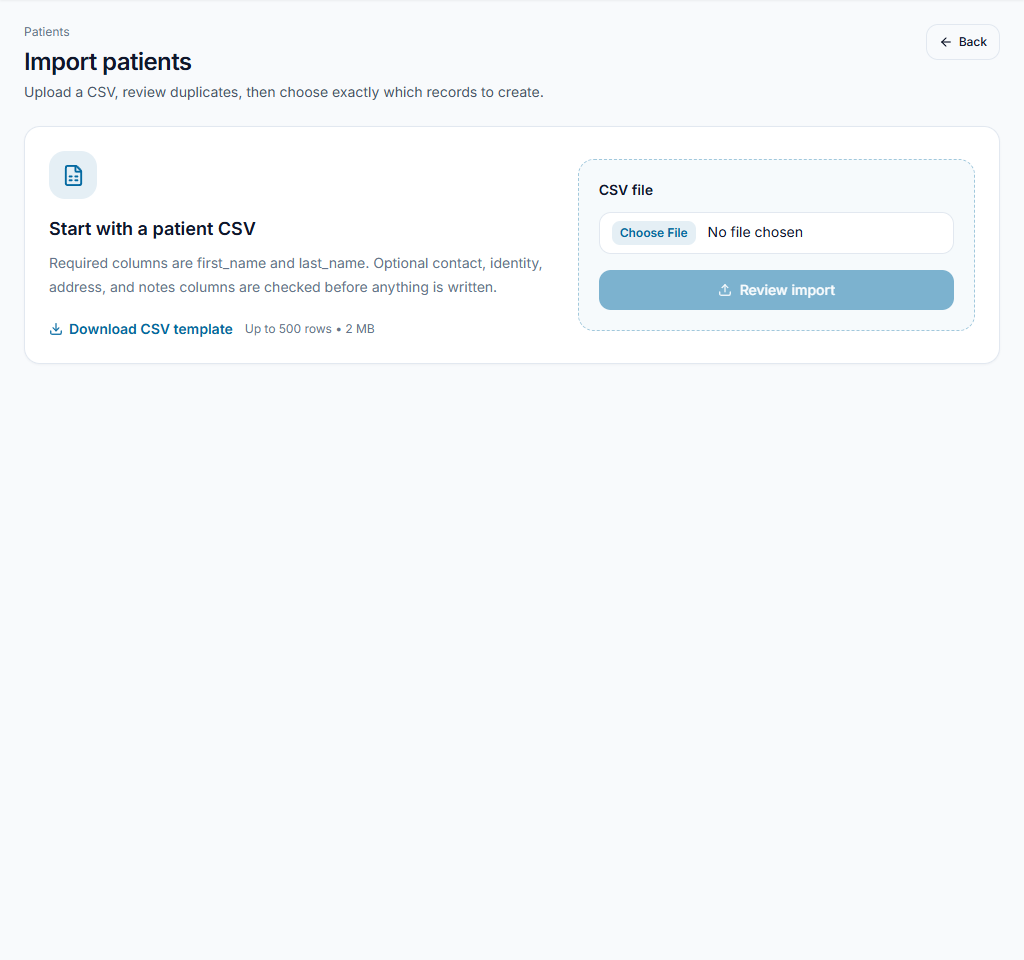
Prepare the supported file
Open Import patients and download its template. Map source fields to the expected columns and review dates, contact formats and identity information. Patient-profile import is not a promise that every historical clinical or financial record will migrate.
Check the result The file matches the selected import workflow and its supported scope.
Inspect the preview
Upload through the import form and inspect its preview/validation report. Resolve errors and review duplicate handling before applying. Use onboarding migration only for the record types its own template explicitly supports.
Check the result The preview explains what will be accepted, rejected or matched.
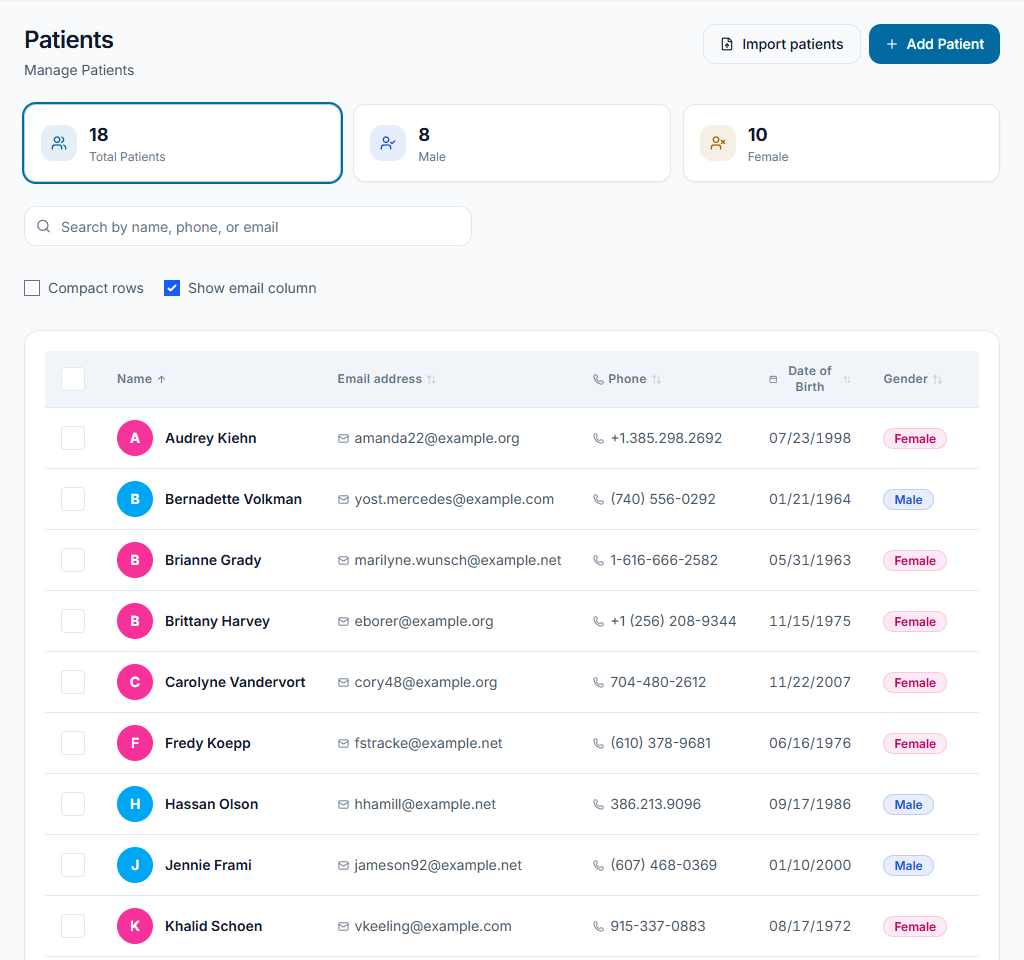
Apply and verify
Apply only after the authorized review. Inspect representative imported records, totals and rejected rows. Confirm patient identity and history provenance before using data for care; keep the original source and approved recovery route.
Check the result Imported records are checked, and exceptions have a follow-up owner.
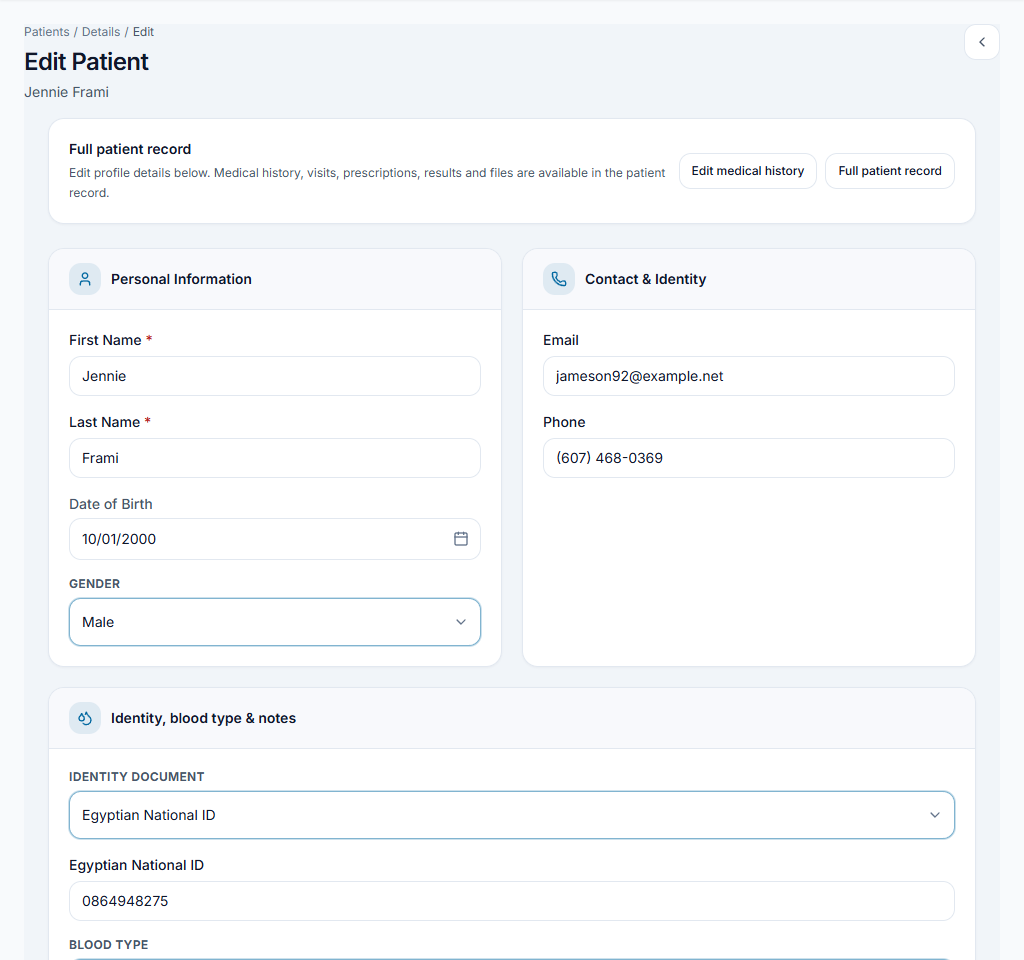
Worked example
Import a small reviewed sample first, verify date-of-birth formatting and duplicate matching, then proceed with the approved migration batch.
Something not working?
The preview contains errors.
Correct the named rows/columns in the source file and re-preview. Do not remove identity checks or fabricate missing information just to make the import pass.
The screen or action is unavailable.
Ask the clinic administrator to check your role, individual permissions, clinic context and enabled modules. Do not use another person’s account.
Team checklist
- The file matches the selected import workflow and its supported scope.
- The preview explains what will be accepted, rejected or matched.
- Imported records are checked, and exceptions have a follow-up owner.