

Prepare prescriptions and patient instructions
Record the clinician's prescription, review it and prepare the intended patient document.
By ClinBeam · Practical product workflow guidance
Complete the steps below and check each recorded result before moving to the next workflow.
Where to work: Visit room / Patient prescriptions → issued documents · Clinician
Before you start
- Clinical decision, allergy history and permission to create/issue prescriptions.
- The selected clinic and record are correct.
- The module and required actions are available to your account.
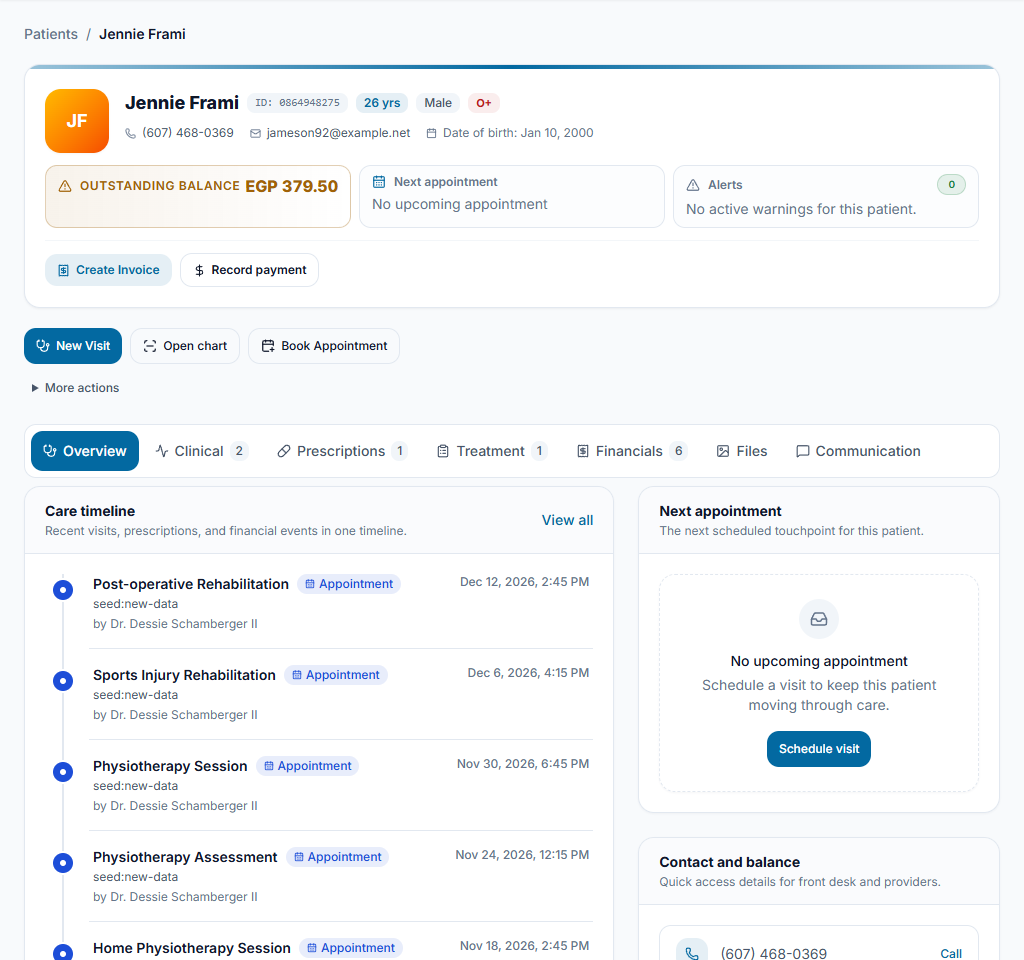
Review the clinical context
Confirm the patient and encounter, recorded allergies and relevant medication history. The drug catalogue and warning tools support review; they do not choose treatment or replace the clinician's decision.
Check the result The clinician has reviewed the patient context before drafting.
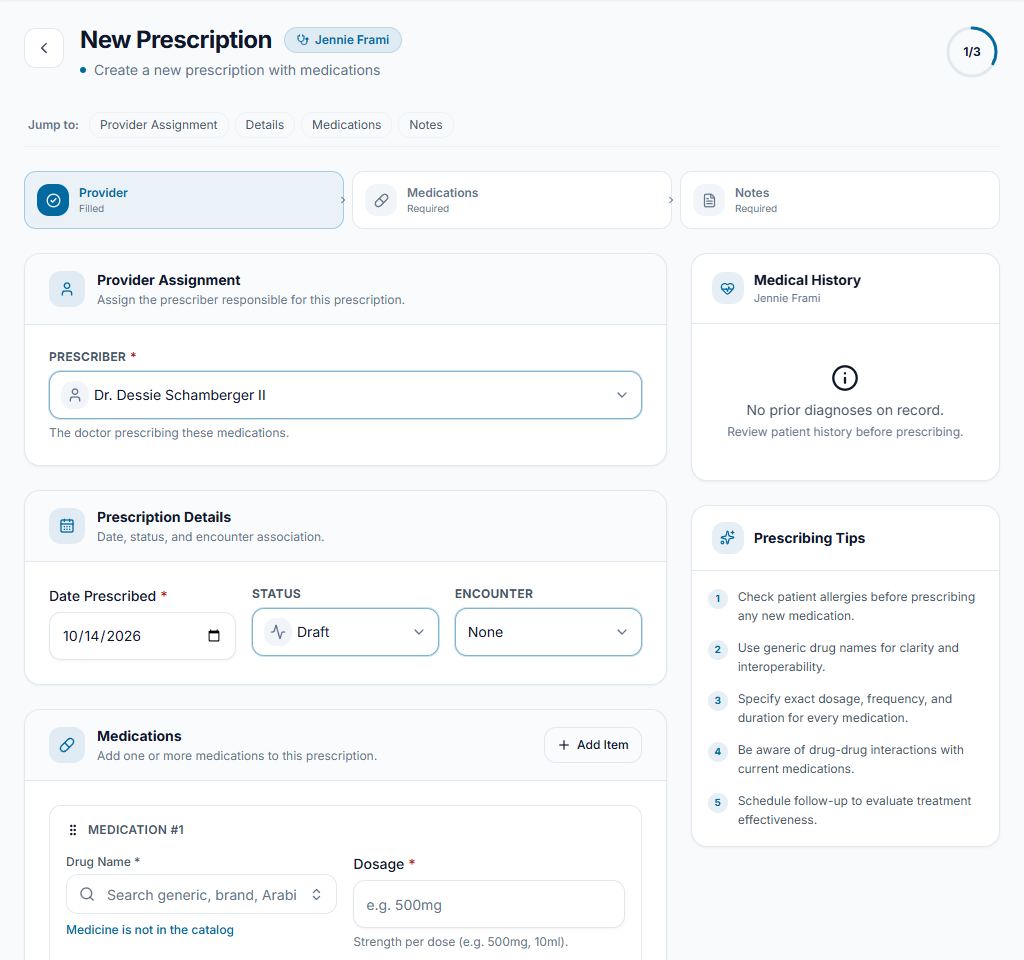
Enter and review the draft
Add the intended drug and its recorded dose, route, frequency, duration and instructions in the prescription form. Review every item and any warnings; correct the draft before issuing it.
Check the result The draft matches the clinician's intended instructions, with no assumed or invented medication details.
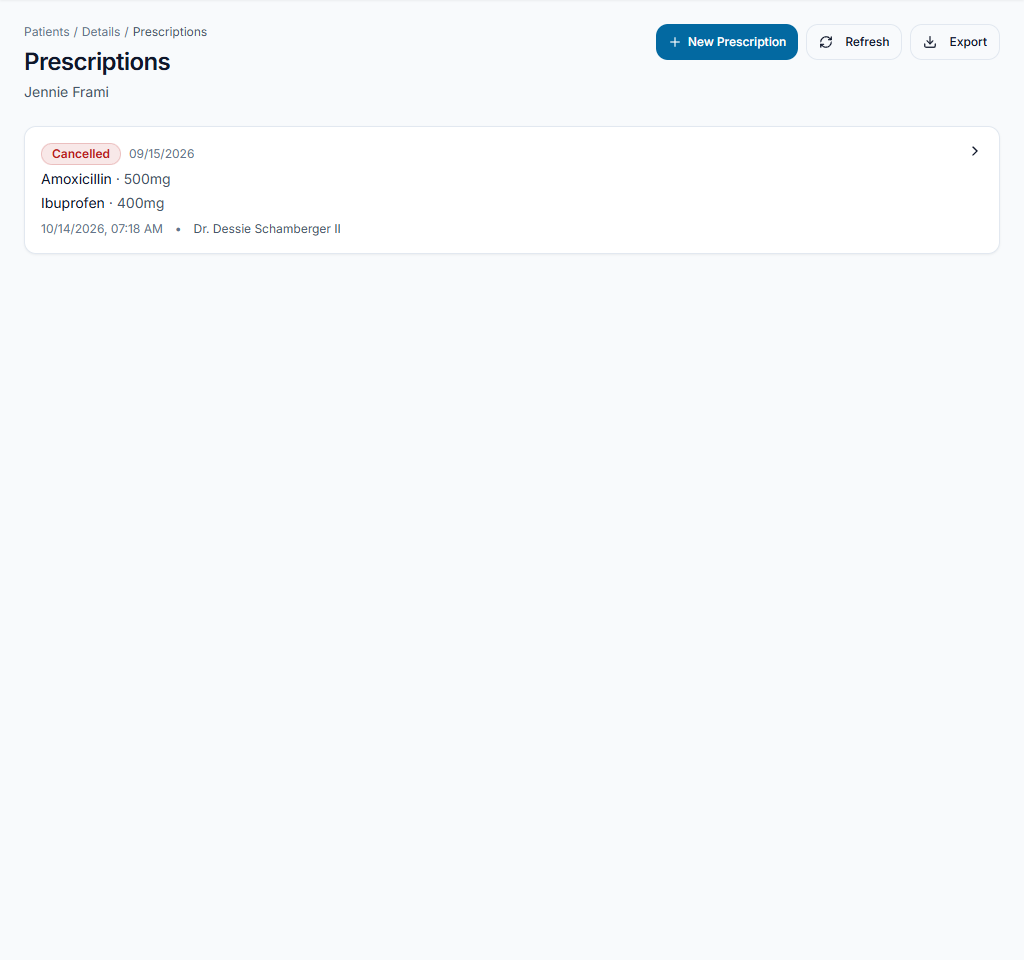
Issue and check the document
Use the authorized issue/print controls and verify the generated patient document. Record follow-up instructions separately where appropriate. Patient delivery requires the configured channel and permission; a generated PDF is not proof it was sent.
Check the result The intended version is available and its delivery status is checked separately.
Worked example
A clinician corrects an instruction in a draft before issuing. Check the generated version rather than handing over an earlier printout.
Something not working?
A medication warning appears.
Stop and review it with the responsible clinician. Do not dismiss it just to finish the form or assume the software has approved the prescription.
The screen or action is unavailable.
Ask the clinic administrator to check your role, individual permissions, clinic context and enabled modules. Do not use another person’s account.
Team checklist
- The clinician has reviewed the patient context before drafting.
- The draft matches the clinician's intended instructions, with no assumed or invented medication details.
- The intended version is available and its delivery status is checked separately.